This configuration module allows you to configure the scoring models for leads, opportunities, and accounts. With this module, you can build multiple customized scoring models. For each custom model, you can add multiple rules for the scoring (sequentially executed). The scores will be available as a new dimension across the application.
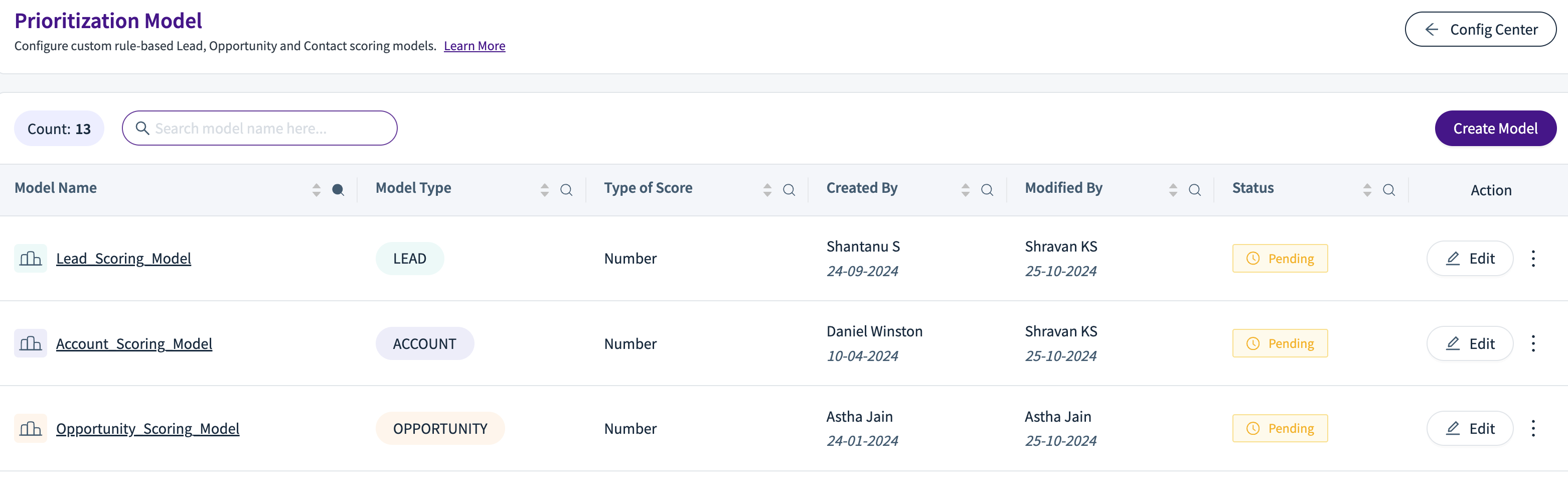
Types of Models
You can create three types of custom models based on the entity for which you are building the scores. These three types are:
Lead scoring models
Opportunity scoring models
Account scoring models
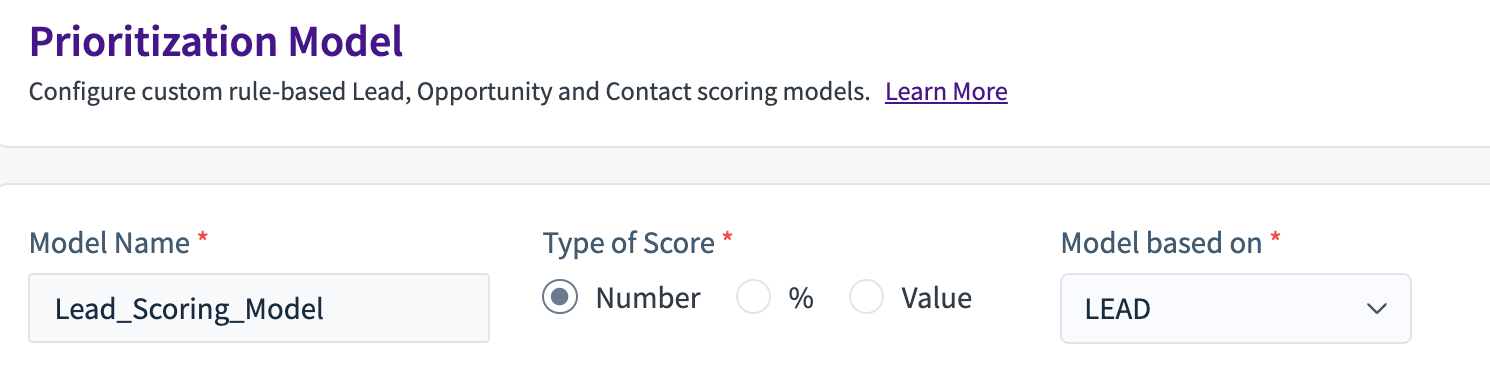
Types of Scores
The output from the scoring models can be one of the three types, as below:
Number
These types of scores are numbers. You can have a default number to start with, and then with every condition, the score is increased or decreased.
Percentage
These types of scores are numbers. You can have a default number to start with. The scores are limited between 0% and 100%. So, for example, if the score goes beyond 100% after execution of any of the rules, the value gets limited to 100%. Similarly, if the score falls below 0%, it gets limited to 0%.
Value
These types of scores are dollar values. You can have a default dollar value to start with, and then with every condition, the score is increased or decreased.
Conditions
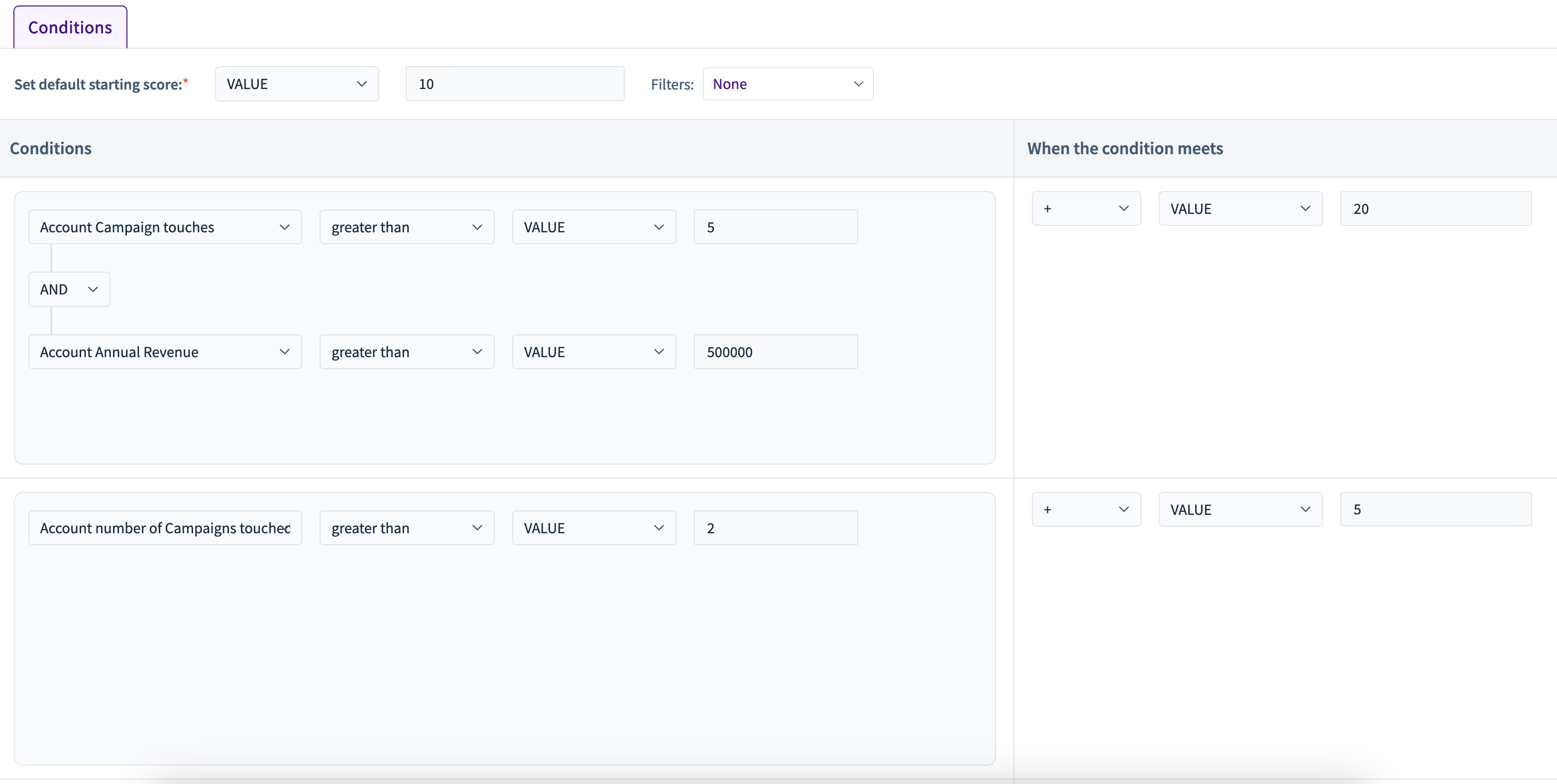
Default score value
You start with a default condition. The default condition can be a value or a dimension.
Value
If the default value is set to the type ‘Value’, then the default score is the same for all the leads/opportunities/accounts.
Dimension
If the default value is set to the type ‘Dimension’, then the default score is more dynamic. It can change for each lead/opportunity/account based on the value of the dimension for it (as the default value). The rules will be applied to this default value from the selected dimension for each lead/opportunity/account.
.png)
Condition rules
After setting the default value/dimension, you can start adding the conditions/rules that will modify the default score value. All conditions are executed sequentially. You can re-order them using the “handle” at the extreme left.
For each rule, you can select one or more dimensions, an operator, and a value. After this, you will need to set what happens to the score if the rule is true. When the condition is met, a mathematical operator can be applied to the latest value of the scor,e and a value can be set to modify the score as you desire.
The final score is when all the conditions are executed.
When you create a new scoring model, it will not get executed immediately. The scoring models are run at the time of the syncs (usually, once a day). So after creating a new scoring model, you will need to wait for the next sync. Once the sync is completed and the scores are calculated, you will be able to see the dimension with the same name as the model across the application at relevant places (like filters).
You can also preview the scores after a sync is run from the “Preview” tab.