Dimensions are attributes of your data or a mix of attributes using some logic. It contains qualitative values (e.g., names, status, region). Dimensions split up the data into different categories and reveal different levels of detail in the data. There are two types of dimensions, i.e., standard dimensions and custom dimensions.
Note: Both Standard and Custom Dimensions can be used as a split or as a filter. Filters can have a maximum cardinality of 20, and Splits can have a maximum cardinality of 5.
Standard Dimensions
As a first-time user, you can see a set of standard dimensions.
.png)
Standard dimensions are nothing but RevSure attributes, which can be used to slice and dice your data. They come out of the box.
You change their name and description by clicking on the Edit button.
Custom Dimension
You can create your own dimensions as well, using one or more standard dimensions or a custom dimension..png)
Custom dimensions can be defined by the user using one or more standard dimensions
You can view/edit/delete the custom dimension and its logic
Adding a Custom Dimension
Depending on your business need, you can add new dimensions.
Click Add Dimension
.png)
Add a Name.
Give a Description.
Click Add a Logic Flow.
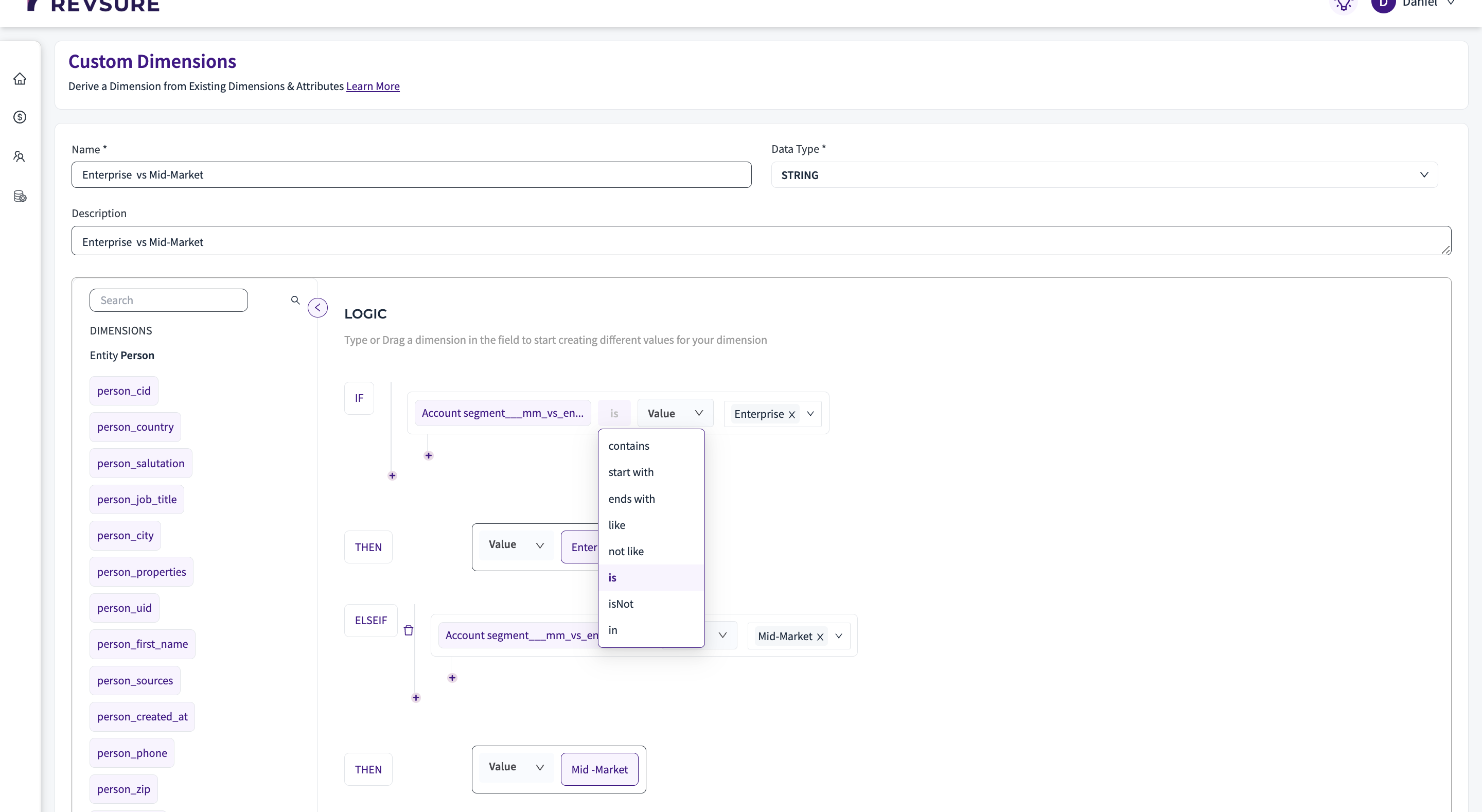
Enter a logic based on the business need.
You can use a conditional statement with the if..else if... else logic
You can compare a dimension against a value or against another dimension
In the then.. and else.. statements, you can either choose a value or a dimension
The datatype is automatically populated. If you would like to change it, click on the dropdown to change the datatype of the dimension.
Click Save.
The new dimension will be listed. Once you add a dimension, you can use it as a filter or configure other aspects, such as splits or aggregates.
Note: Custom dimension can not have more than 20 dimension values, i.e., not more than 20 blocks in the logic flow.Note: Standard dimensions that have more than 20 dimension values can not be directly used as a filter or split. The user can create some grouping on those values using custom dimensions, then use them as filters or splits. See example below.
Lead Score is a standard dimension that can take 101 values, i.e., 0 to 100, and can not be directly used as a filter or split. We can use a custom dimension to create some grouping, like if Lead Score > 0 && < 20, then "0-20", if Lead Score >20 && 40 then "20-40", and so on.
.png)