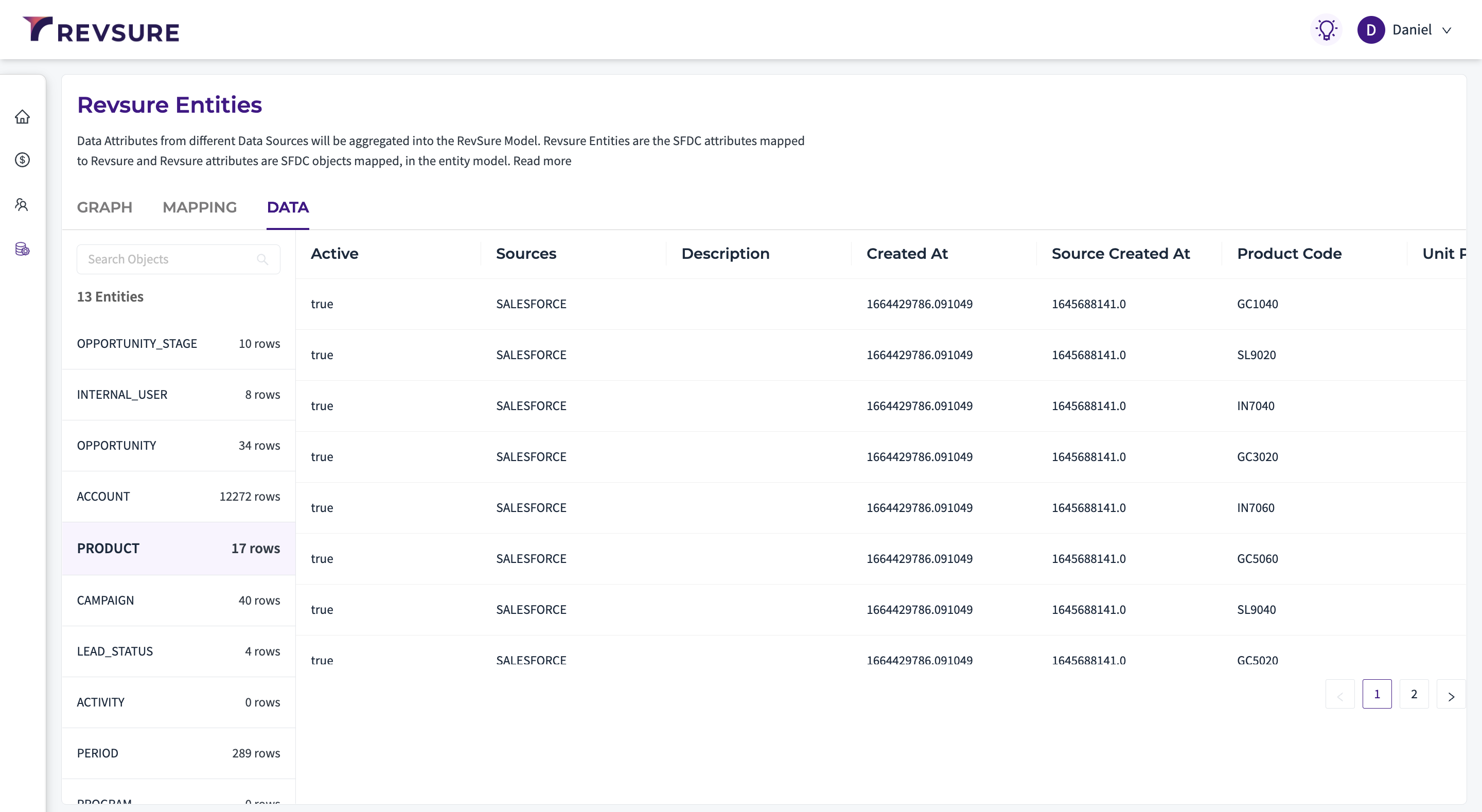
RevSure's dedicated Data Model powers all the data, including metrics and the dimensions seen on the dashboard. RevSure allows users to map their source data with corresponding entities and attributes from the RevSure Data Model to unleash RevSure's Sales Pipeline Readiness module.
RevSure Data Model consists of a set of entities that are related to one another. An entity contains a set of attributes that define the characteristics of an entity. In a traditional DBMS Entity Relationship model, Entities are synonymous with tables and Attributes with Columns.
RevSure has a predefined set of source objects from all supported sources, which can be mapped with a RevSure entity. The RevSure attributes are mapped with the attributes from these objects, thus establishing the relationship between the entities.
Graph View
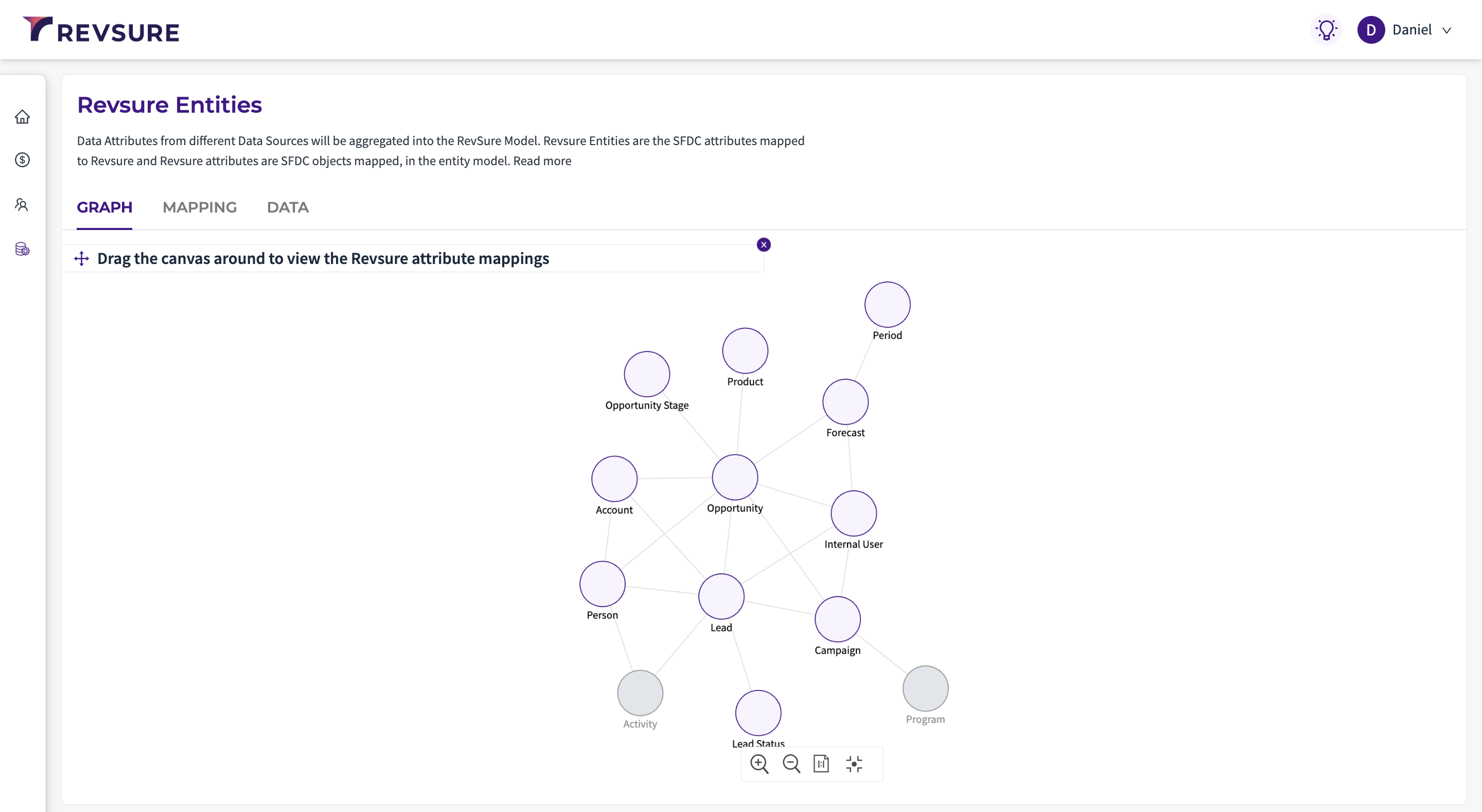
RevSure Data Model is best represented with the help of this graph view. The graph view visually represents the relationship between entities. The entities that do not have a relationship with any other entity, or which do not have any data mapped to them, are greyed out to provide a distinction.
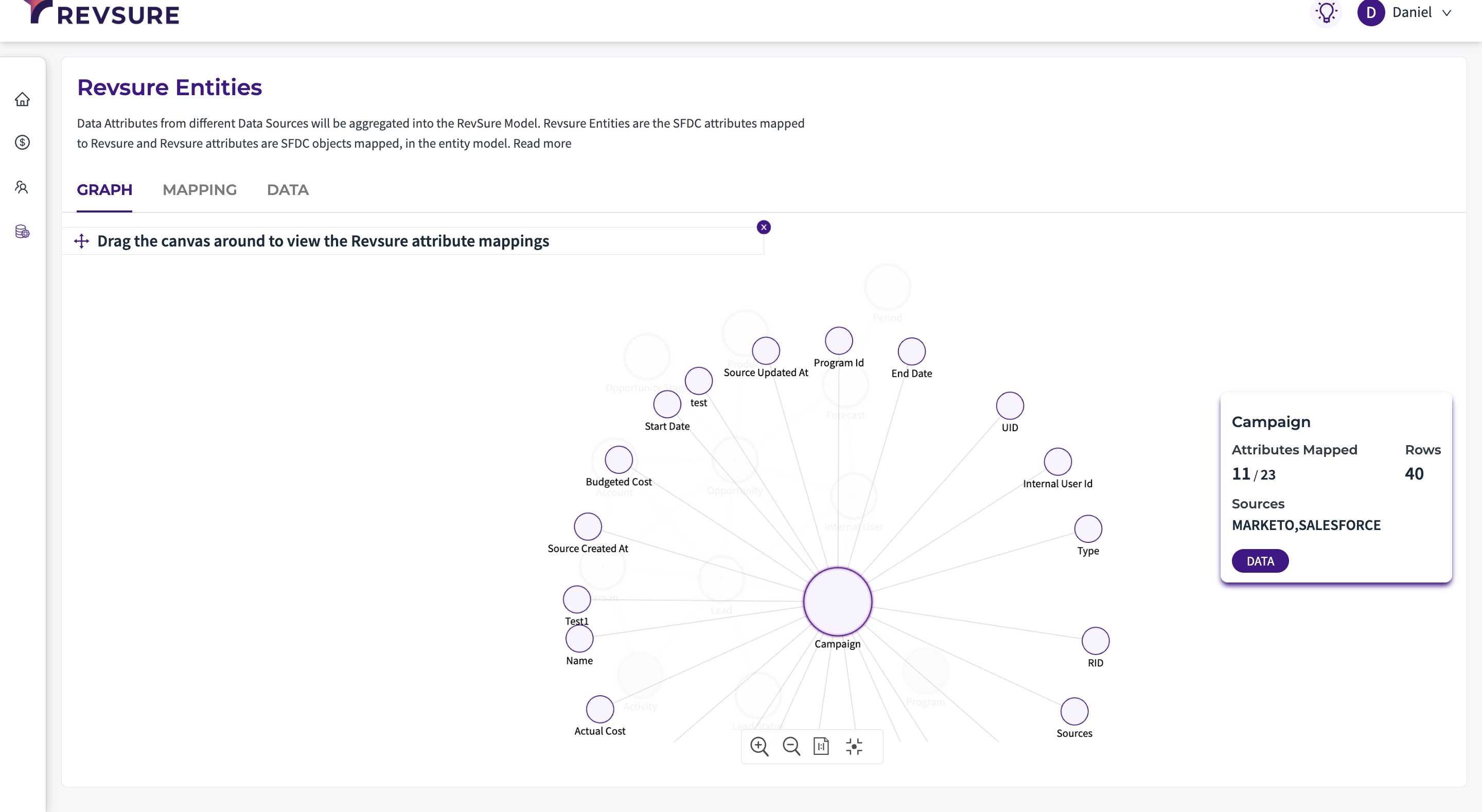
To see the relationship of one entity with the other entities, click on it. This gives you more information about the number of attributes available, and number of attributes mapped with a data source, and the number of records present under the entity. It also gives you what are the connections that are powering the data to the RevSure entity.
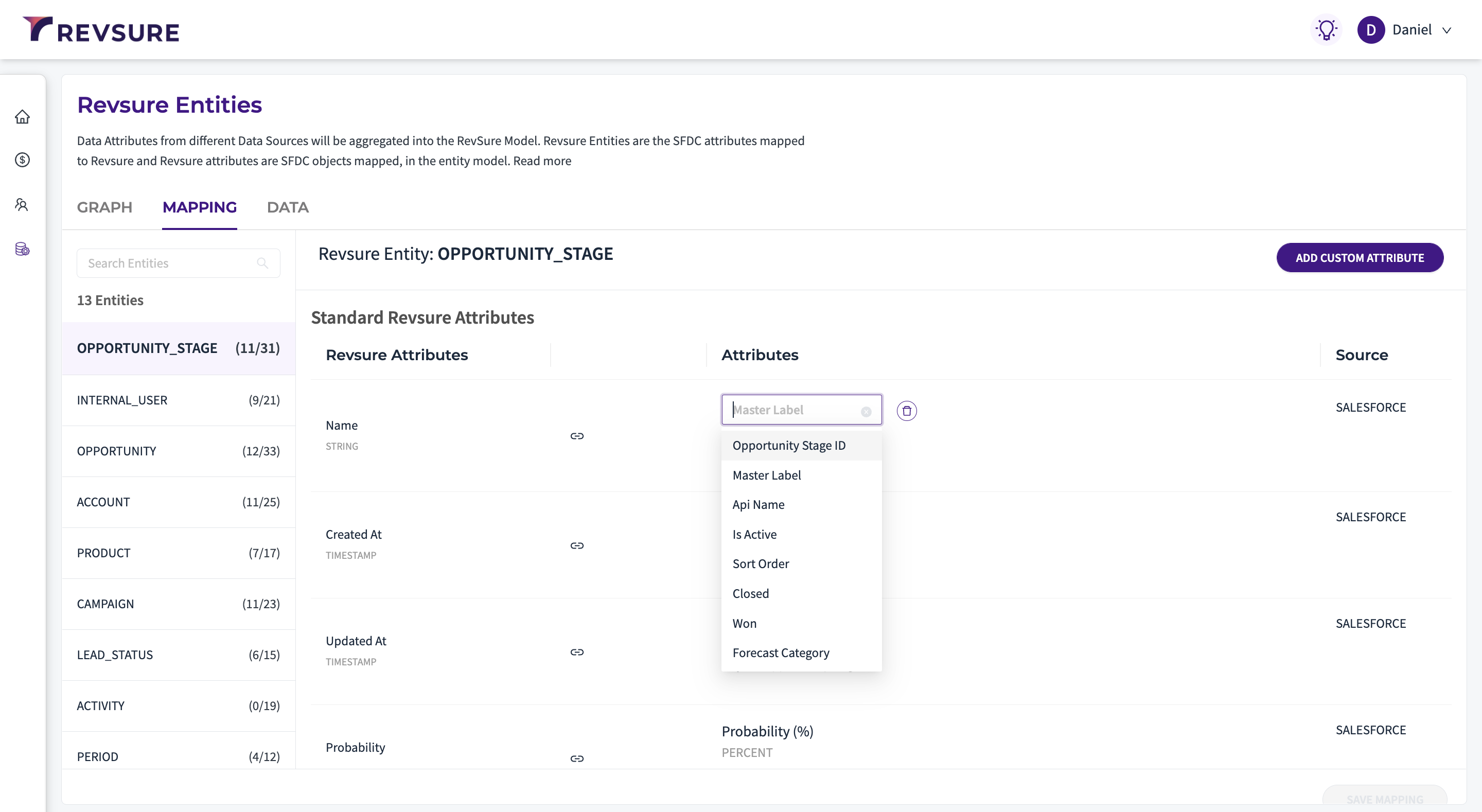
Mapping View
Mapping view lists down all entities in the model and the attributes under them that have a mapping. If there is more than one mapping to an attribute, they are embedded with the help of the union operator.
Change the mapping
To change the mapping name:
Hover over the name and click Edit.
Select the new mapping name.
Note: Before changing the mapping name, go to Data View to confirm that you see the latest data values.
Add a custom attribute
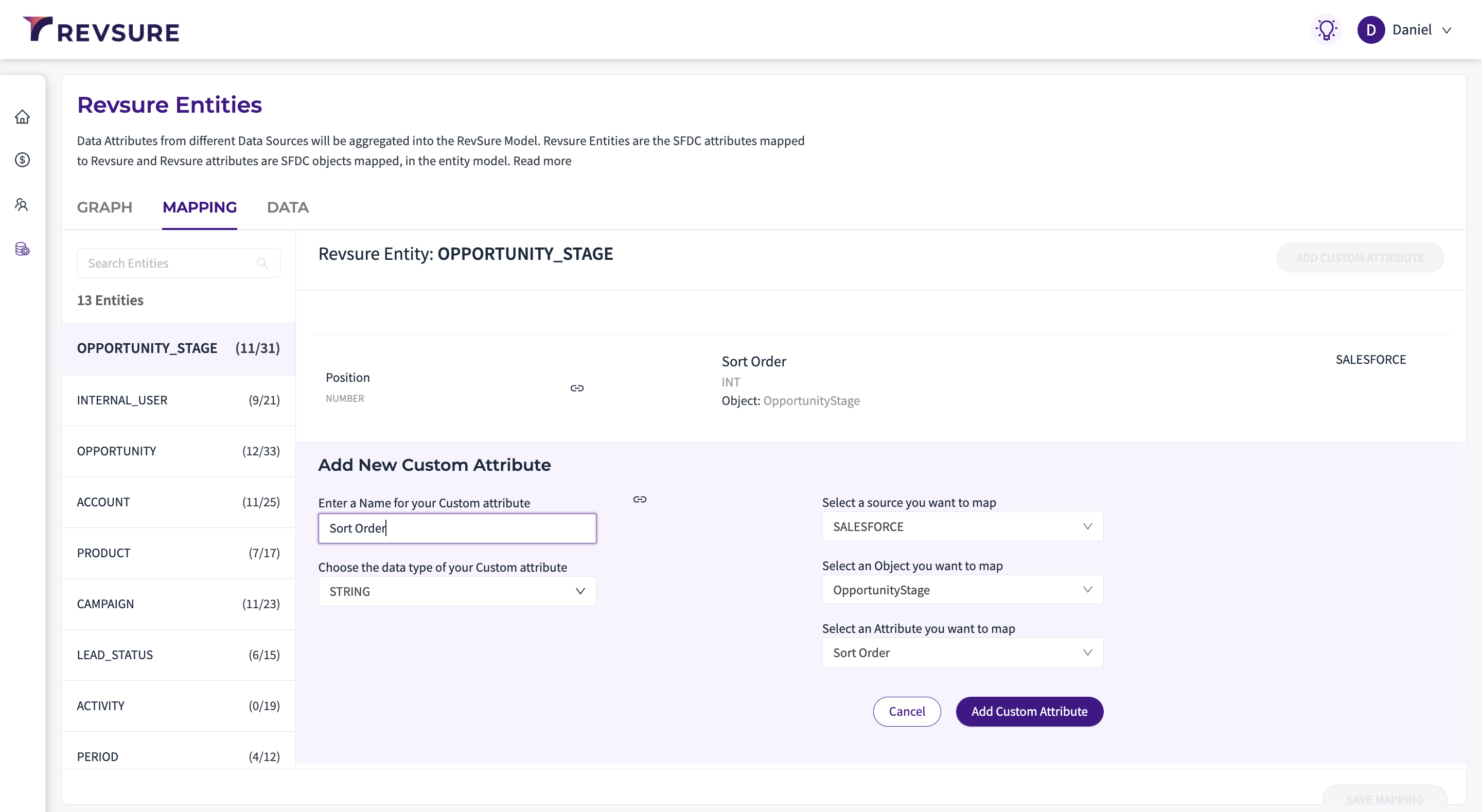
You can also add a custom attribute to an entity
Click on Add Custom Attribute
Enter a name and choose a datatype for your attribute
Select the Source that you would like to map to.
Select the Object and attribute that you want to map.
Click Add Custom Attribute
Data View
Data view allows you to view a preview of a particular entity in the RevSure data model.