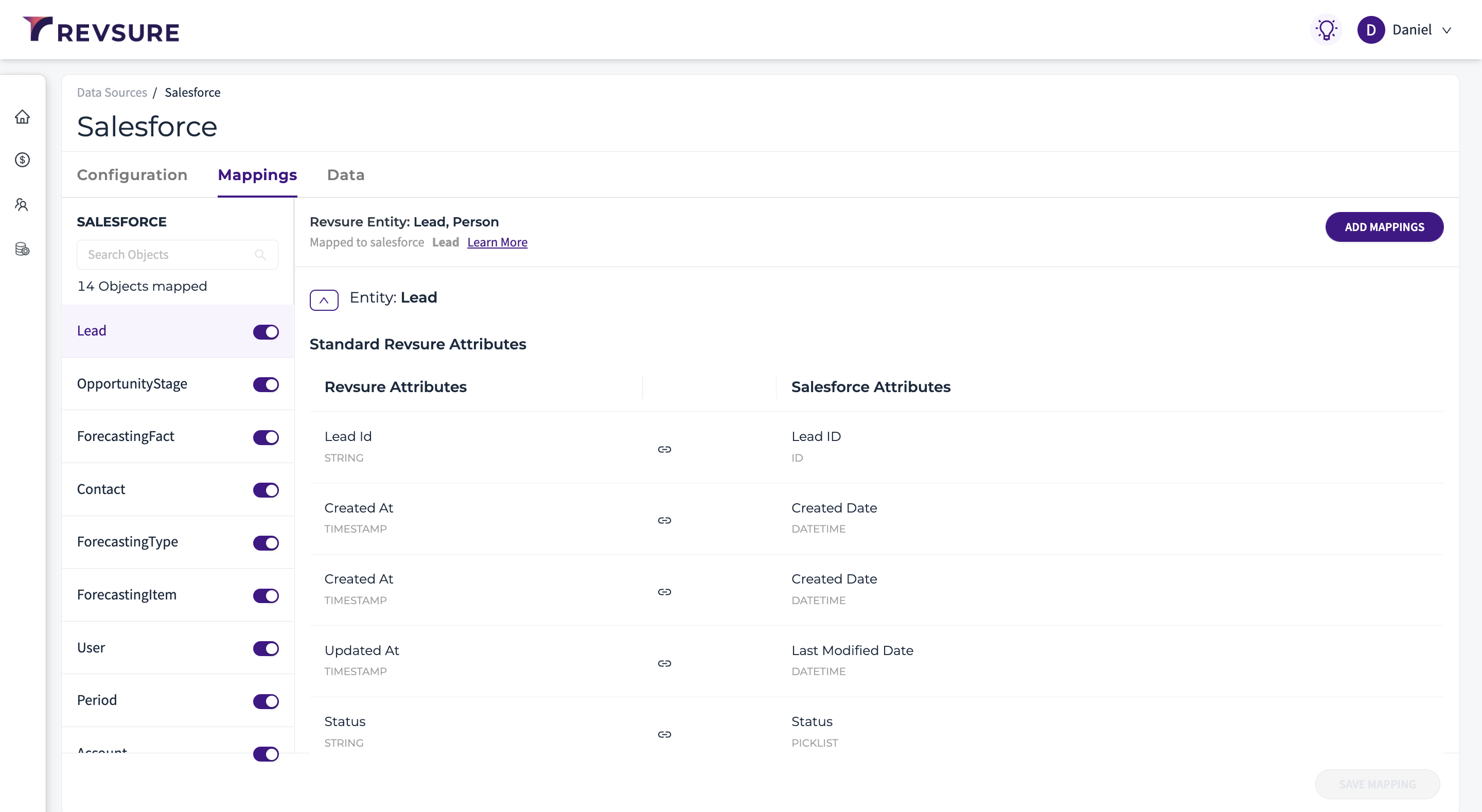
This page lists all the data sources that you have integrated with RevSure. You can review or edit them.
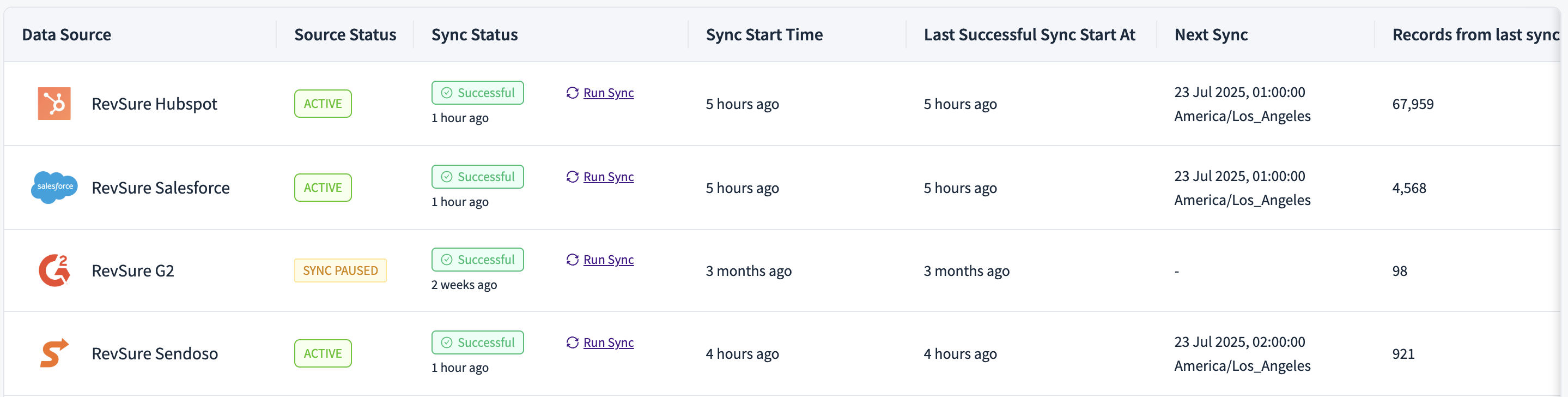
From this screen,
1. You can pause the schedule to stop future syncs. If you would like to temporarily disable the syncs for a particular connection, you can use this.
Note: Pausing a Schedule will only stop the subsequent data syncs. To add a new connection for the same source, the existing connection has to be deleted.
2. Delete the connection if you would like to remove all mappings and purge all data. All mappings will be unmapped, and all data flowing from this connection will be deleted.
3. Run a Sync if you would like to start a sync immediately. If you would like to start a sync immediately instead of waiting for the scheduled sync to run, you can use this.
4. Edit and configure a connection by changing the mappings, adding new mappings to a connection, revoking the access, and changing sync settings.
Configuring a Data Source
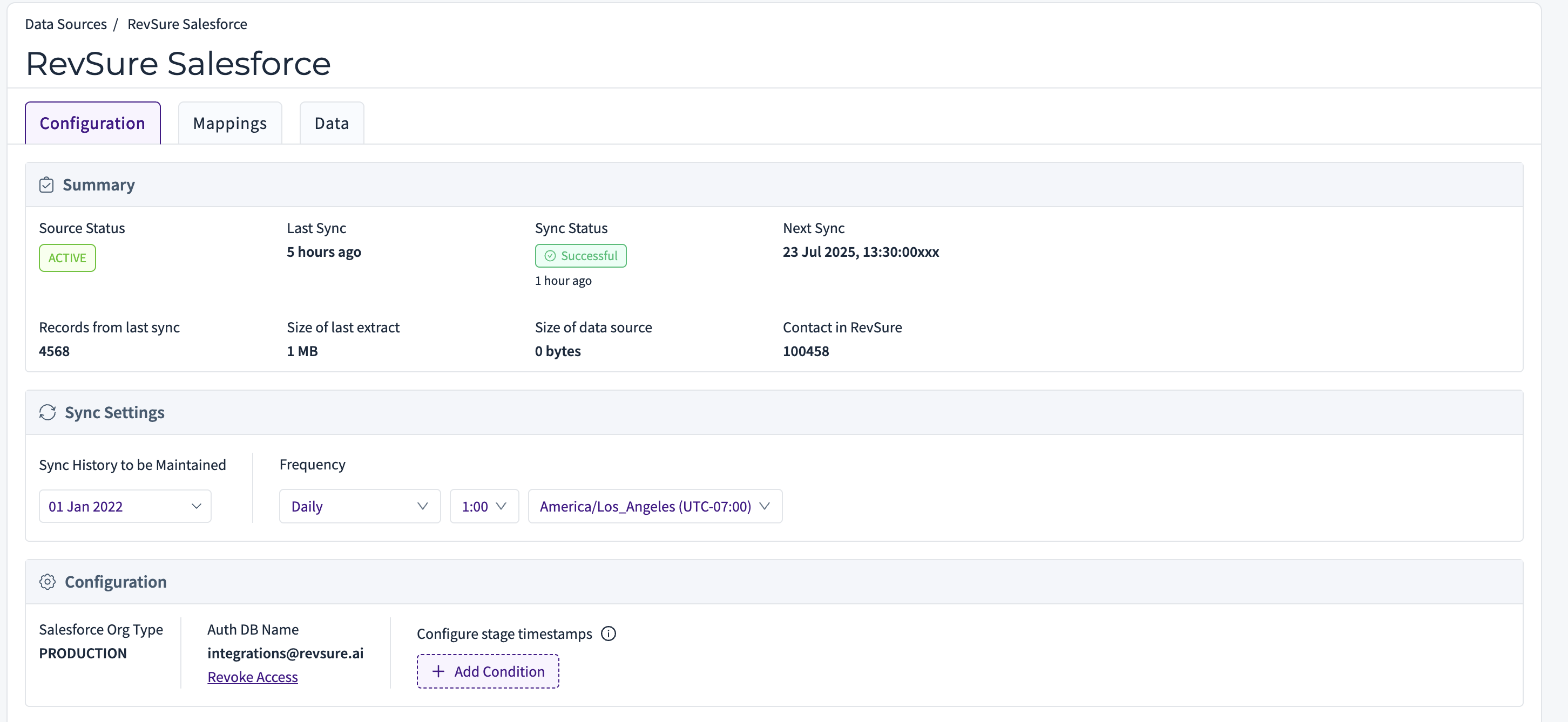
RevSure allows a set of configurations that you can do to an existing connection.
1. You can change the sync settings, such as Sync Frequency and Time Zone.
2. Revoke the access to a connection to remove the 0auth token. Once removed, the connection becomes inactive, and the user will have to reauthorize the connection to activate it again.
3. Reauthorize a connection to register a connection with a user's credentials. If a user's credentials have been used to authorize a connection, and if the user does not exist in the org anymore or if they have been removed, the connection can be reauthorized with another user's credentials.
Note: You cannot use the credentials of a user belonging to another organization to authorize a connection.
4. Test the connection to see if it has been successfully established. A connection could fail for several reasons, including permission denied, 0auth token not present, etc.
5. Change the name of a connection. Hover on the name of the connection and click on the name. Enter a new name for your connection.
6. Change mappings and Add New mappings from the mappings tab.