RevSure Canvas makes it easy to continue an existing analysis without changing the original work. With Continue in new chat, you can create an independent copy of an existing public conversation and artifact. Artifact Versioning keeps track of how an artifact changes over time, so you can revisit previous versions whenever needed.
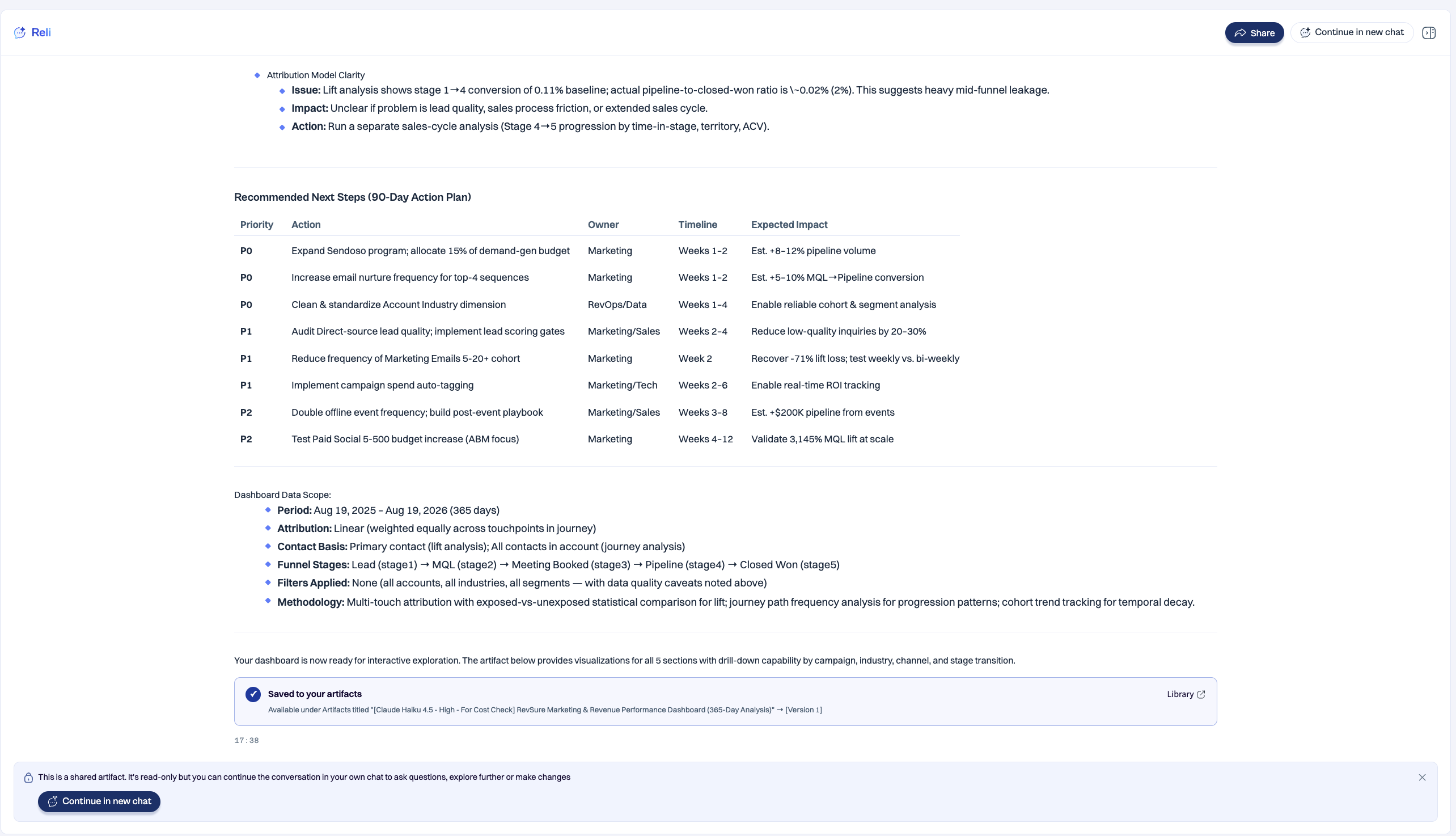
Continue in New Chat
Overview
Continue in new chat lets you branch from an existing RevSure Canvas conversation and its artifact into a new, independent chat.
This is useful when you want to:
Explore a different direction or ask additional questions without modifying the original conversation.
Build on an analysis shared by another user.
Continue working from the same context in your own chat.
How It Works
The Continue in new chat option is available when both the chat and its artifact are public.
When you select Continue in new chat:
RevSure Canvas creates a copy of the existing chat and artifact.
The copied conversation becomes a new, independent chat under your account.
The original chat and artifact remain unchanged.
You can continue asking questions and performing additional analysis in the new chat.
Any changes you make in the new chat do not affect the original conversation.
What Happens to the Artifact?
The artifact from the original conversation is included when the new chat is created.
If you continue the conversation and your next analysis generates an updated artifact, the updated artifact becomes the latest version displayed in the new chat.
The previous artifact is not lost. It remains available through the artifact's Versions dropdown.
Sharing and Visibility
Chat and artifact visibility are connected when sharing a complete analysis:
Continue in new chat is available only when both the chat and artifact are public.
When a chat is public, its associated artifact cannot be made private independently.
When sharing from a private chat using the Artifact and Chat option, both the chat and artifact become public.
A forked chat creates an independent copy, so subsequent changes do not modify the original shared analysis.
Forked artifacts are identified with a fork icon in the artifact version history, making it easier to understand their origin.
Artifact Versioning
Overview
Artifact Versioning automatically maintains a history of changes to an artifact.
Instead of replacing the previous artifact whenever the underlying data is refreshed or the analysis changes, RevSure Canvas creates a new version. This allows you to review how an analysis or dashboard has evolved over time.
When Is a New Version Created?
A new artifact version is automatically created when:
You select Refresh data to update the artifact with the latest available data.
You continue the conversation and a new or updated artifact is generated.
No manual version creation is required.
Viewing Previous Versions
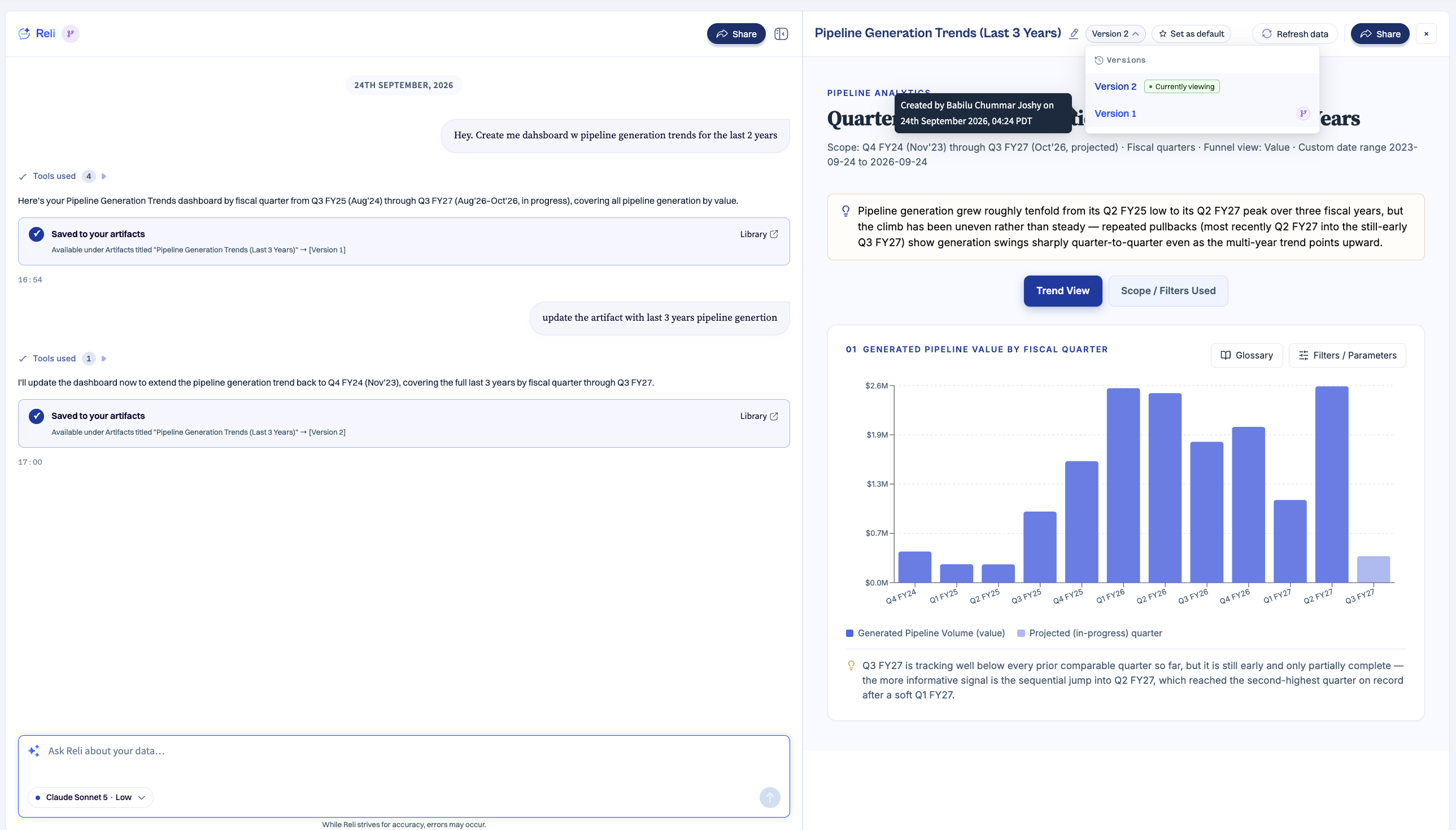
Every artifact includes a Versions dropdown.
Use the dropdown to:
View the available versions of the artifact.
Open an earlier version.
Move between historical versions and the latest version.
Identify versions associated with a forked conversation.
Previous versions remain available even after newer versions are created.
Refreshing an Artifact
Refresh data always works with the latest version of an artifact.
Historical versions are preserved as snapshots and cannot be refreshed directly. When viewing an older version, the Refresh data option is therefore not available.
To refresh the analysis with the latest data, return to the newest artifact version and select Refresh data.
Continue in New Chat vs. Artifact Versioning
Capability | Purpose |
|---|---|
Continue in new chat | Creates an independent copy of a public chat and artifact so you can continue the analysis without changing the original. |
Artifact Versioning | Maintains previous versions whenever an artifact is refreshed or regenerated. |
Refresh data | Updates the latest artifact with current data and automatically creates a new version. |
Versions | Lets you revisit previous states of an artifact at any time. |
Example
A teammate shares a public RevSure Canvas analysis with you.
You select Continue in new chat to create your own copy and ask additional questions. Your follow-up analysis generates an updated artifact.
RevSure Canvas keeps the artifact you started with as an earlier version and displays the newly generated artifact as the latest version.
You can continue working from the latest artifact while using Versions whenever you need to reference an earlier state.
Key Takeaways
Use Continue in new chat to branch from an existing public analysis without changing the original.
The new chat is independent of the source conversation.
RevSure Canvas automatically creates artifact versions when data is refreshed or continued analysis generates an updated artifact.
Previous artifact versions remain available for reference.
Only the latest artifact version can be refreshed with new data.
Fork indicators help identify artifacts and versions originating from a forked conversation.