Mapping View
In this page, you can see the list of objects that are automatically mapped from HubSpot to RevSure. You can review and confirm the object mappings.
Objects: Lists the objects that are mapped from the HubSpot
RevSure Entity: This section lists the RevSure entities mapped to the HubSpot objects.
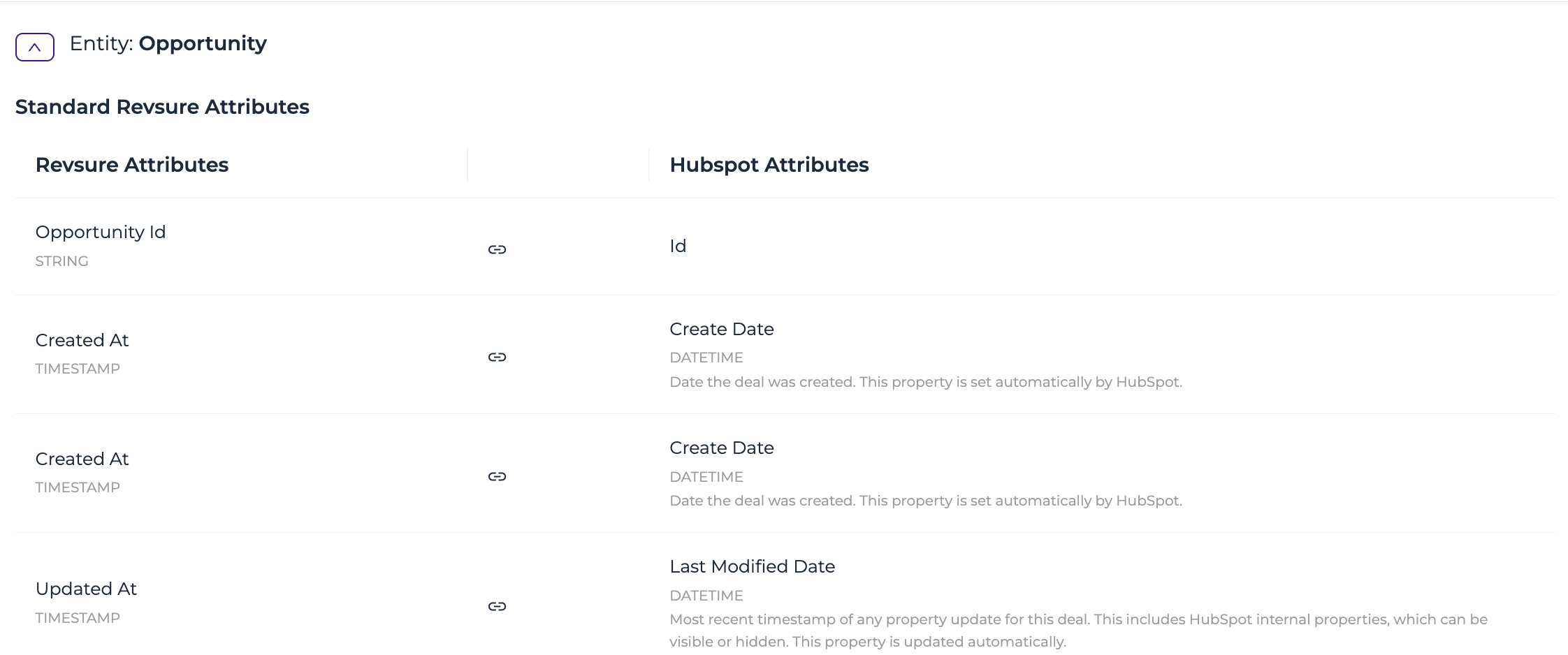
For example, the HubSpot deals object is mapped to RevSure Entity Opportunity..png)
RevSure Attributes: A RevSure entity has a list of standard attributes. You can also add Custom attributes.
The RevSure attributes are mapped to HubSpot attributes
Adding New Mappings
If you would like to add a mapping for an attribute that is present in the RevSure Data Model,
- Click Add Mappings on the Top right
- Click Map Existing Attribute and Click Continue
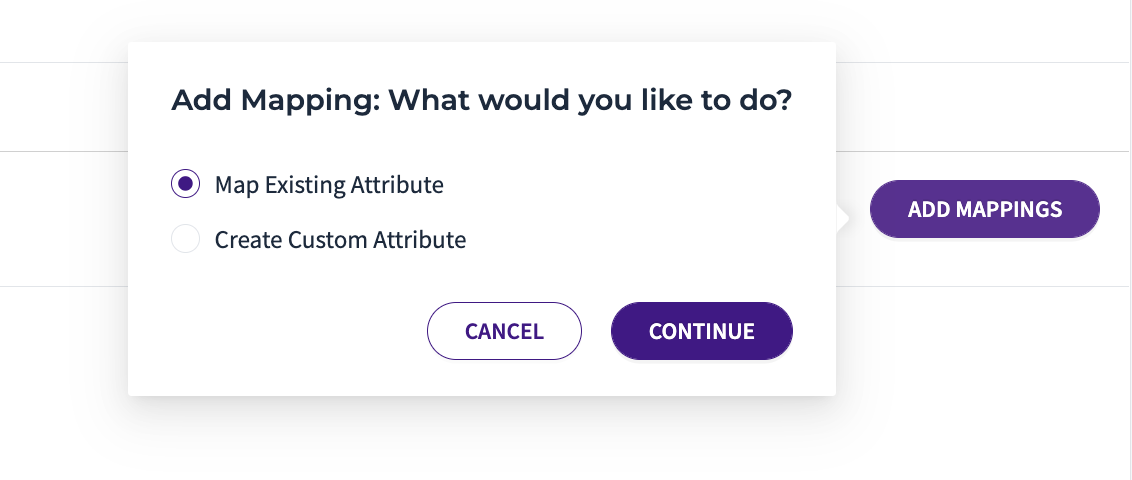
- Choose the entity that you would like to map to and click Map
- Choose the RevSure Attribute and the Source Attribute, and then click Add Mapping
If you would like to add a mapping by creating a new custom attribute that is not part of the RevSure Model
- Click Add Mappings on the Top right
- Click Create Custom Attribute and click Continue
- Choose the entity that you would like to map this new custom attribute to and click Map
- Enter the name of your attribute, choose a datatype, choose the Source Attribute, and then click Add Mapping
Change Mapping Name
To change the mapping name:
- Hover over the name and click Edit.
- Enter the new mapping name.
Note: Before changing the mapping name, go to Data View to confirm that you see the latest data values..png)
If you cannot find the attribute that you would like to map,
- Click on Add manually
- Enter a name and a datatype for your attribute
- Click the tick mark to validate
- If the attribute exists in our preview data, it is validated.
If the attribute does not exist in our preview data, it throws a warning. - Click on Save Mapping. If an invalid attribute exists, a pop-up appears.
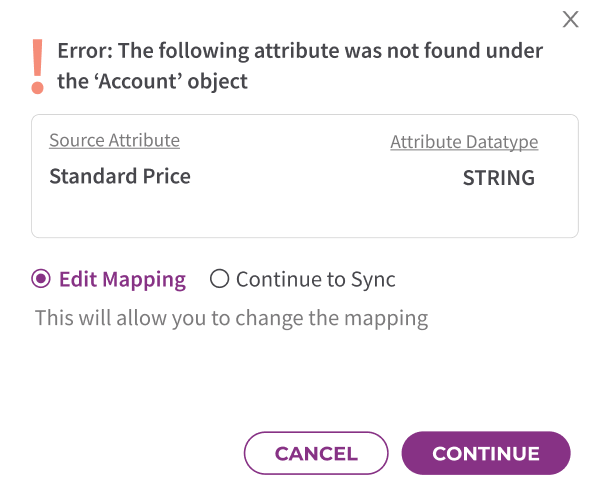
- Choose Edit Mapping if you want to go back to change the mapping
- Choose Continue to Sync if you are sure that the attribute exists.
Note: If this attribute is still not found, the mapped RevSure attribute will be populated as NULL
Data View
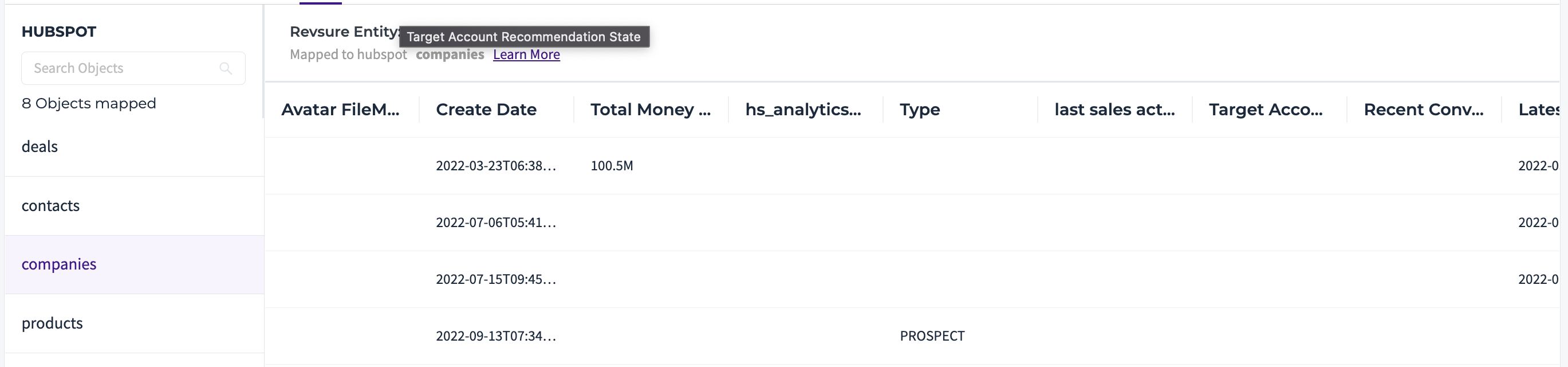
In this page, you can preview data of objects that are automatically mapped from HubSpot to RevSure and the data view for the selected object. This page also helps you confirm that the data integration is successful.
- Select a HubSpot object to see the preview of the data.
Confirm Mapping
Once you are done reviewing the mapping, you can click Confirm Mapping.