Global Filters is a powerful dashboard-level filtering capability in RevSure's Dashboard module. It lets you apply a single set of filters across all widgets on your dashboard simultaneously, eliminating the need to manually configure filters widget by widget.
Global Filters is available in the Dashboard module. It is disabled by default for existing saved views and must be enabled per view.
What's New
Previously, filters in the Dashboard module were widget-specific - requiring you to apply the same filter repeatedly across each widget. With Global Filters, you can set your filters once and push them across your entire dashboard instantly, saving time and reducing the risk of inconsistency.
Key Capabilities
Enable / Disable Global Filters
A Global Filter toggle at the customize section of the dashboard lets you turn global filtering on or off per view.
When enabled, a filter panel appears at the top of the dashboard.
When disabled, each widget uses its own widget-level filters.
Apply Filters Across Tabs
Apply to Current Tab — Pushes the selected filters to all widgets in the active tab only.
Apply to All Tabs — Pushes filters across every tab in your dashboard (default behavior).
The "Apply to All Tabs" option is greyed out if your dashboard has only one tab.
Supported Filter Types
Filter Type | Applies To |
Time Period | Non-Attribution widgets |
Campaign Time Period | Attribution-related widgets |
Dimension Filters | All applicable widgets |
Compare With | Marketing Attribution Performance widget only |
Campaign-related filters (e.g., Campaign Time Period) apply only to Attribution-related widgets. Time Period filters apply to all other widget types.
Widget-Level Override
Need to keep one widget on a different filter set? No problem.
Any widget can be overridden to use its own filter settings, independent of the global filter.
Override states are saved as part of your view — so you can have a combination of globally-filtered and individually-overridden widgets in the same saved view.
Visual Indicators
A green global filter icon appears on each widget when global filters are active. It disappears when filters are reset or not applied.
The Active Filters panel displays the currently applied global filters at a glance.
Color Indicators
RevSure uses color-coded dots to help you instantly distinguish between filter types at a glance, both in the filter panel and on individual widgets.
Color | Filter Type | Applies To |
🔵 Blue | Global Filters | All widgets on the dashboard |
🟠 Orange | Campaign Filters | Attribution widgets only |
The blue dot appears next to filters such as Time Period and Dimension Filters that are applied across all widgets.
The orange dot appears next to Campaign Time Period and other campaign-specific filters that apply only to Attribution-related widgets.
In the Selected Filters panel, each active filter is color-coded so you can immediately see its scope.
Widget headers also display the corresponding colored dot when a filter of that type is active on them.
Saving & Restoring Filter State
Global filter configurations are saved as part of your view — so your filter setup is restored whenever you load a saved view.
The Compare With filter selection is also retained after save and refresh.
Widget-level overrides are saved independently and coexist with global filter settings.
Frequently Asked Questions
Will Global Filters affect my existing saved views? No. Global Filters are disabled by default for all existing saved views. You need to explicitly enable the toggle to activate them.
Can I apply filters to only some widgets? Yes. Use the widget-level Override option to exclude specific widgets from the global filter and apply custom filters to them instead.
What happens when I add a new tab? If Global Filters are active when you create a new tab, the filters will carry over to the new tab automatically.
Are all widgets supported? Most Dashboard widgets are supported.
What does the green icon on a widget mean? It indicates that a global filter is currently applied to that widget. If you reset the filter or disable Global Filters, the icon will disappear.
Getting Started
Navigate to the Dashboard module in RevSure.
Open or create a Dashboard View.
Enable the Global Filters toggle at the customize tab of the dashboard.
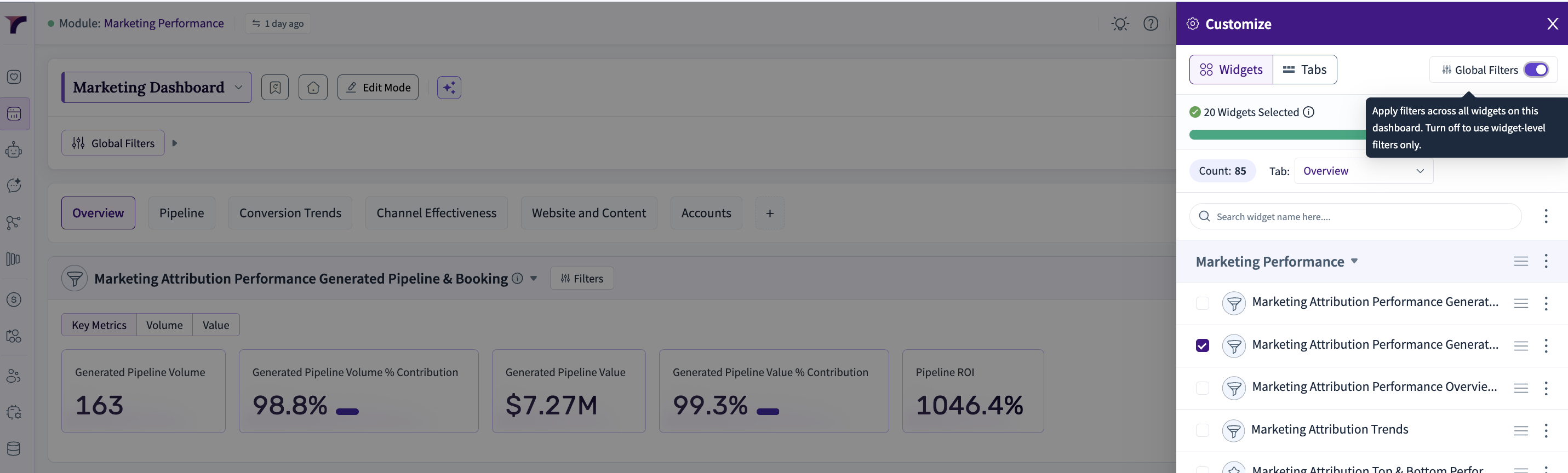
Select your desired filters from the filter panel (Time Period, Campaign Time Period, Dimensions, etc.).


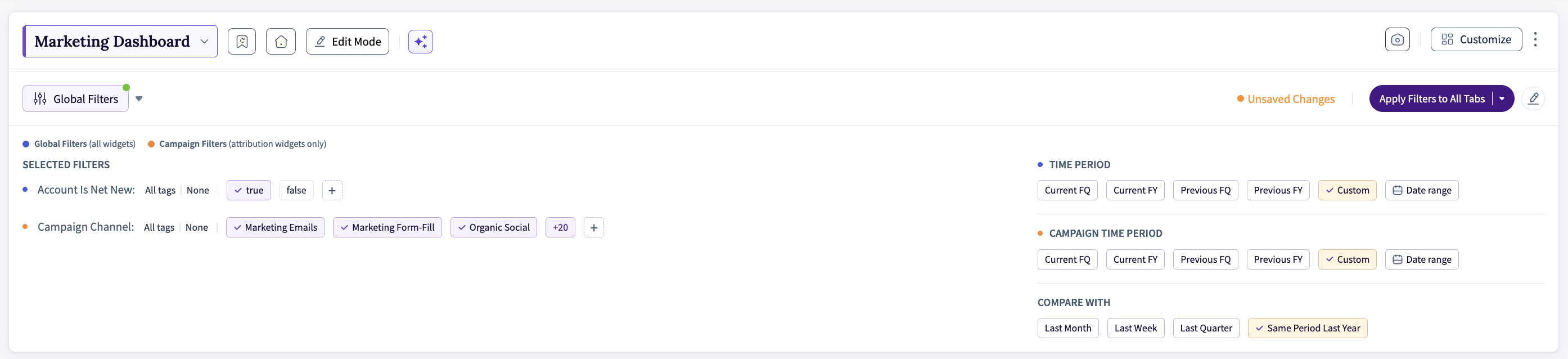
Click Apply Filters — choose to apply to the current tab or all tabs.

To override a specific widget, click the override option within that widget's filter settings.
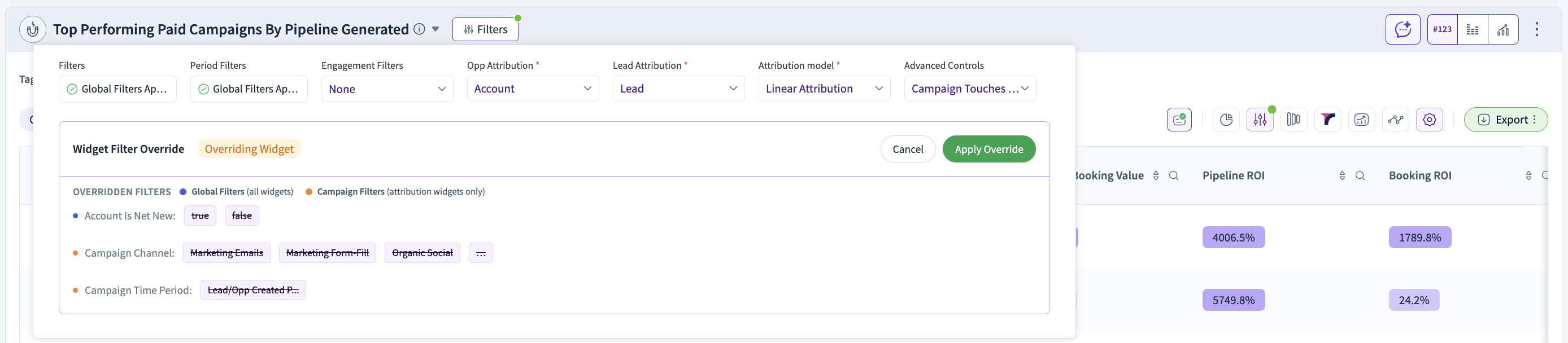
After applying Override, the widget will no loner have the global filter, green global filter icon disappears.
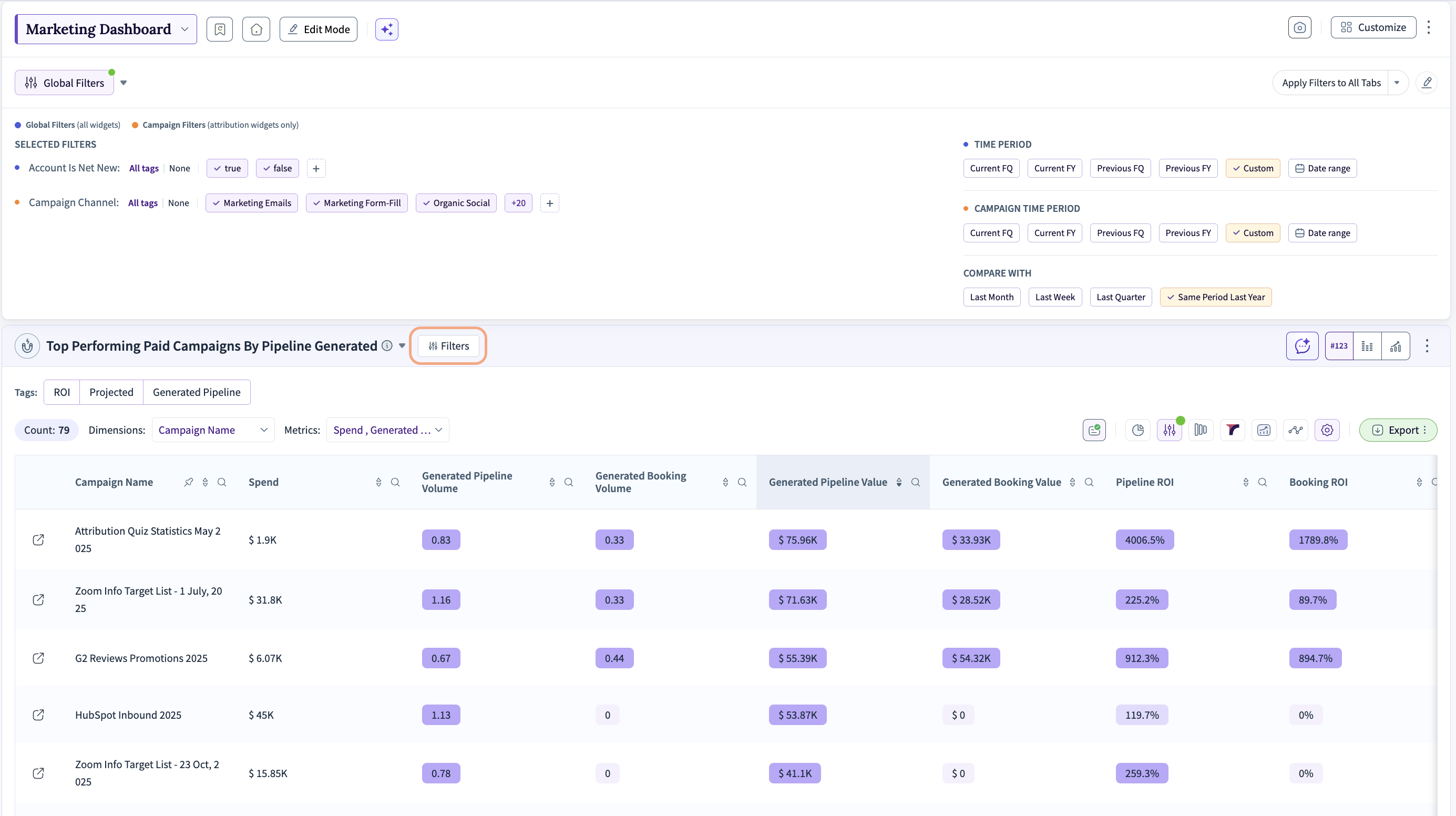
Save your view to persist the filter configuration for future sessions.