This page describes all the filters and options that are available to you on the Cohort Intelligence page. These filters and options work together to help you analyse cohorts and their movements in the funnel in various ways.
.png)
Filters
This filter allows the user to choose the dimensions related to leads, accounts, and opportunities as filters. This is based on various dimensions that are configured.
You can add the desired dimensions to this filter by clicking the three-dot menu on the top-right of the page and selecting the ‘Edit Page’ option. Then add the dimensions you want in the ‘Filters’ section of the ‘Edit Page’. When you go back to the main page, the selected dimension and its options will now appear in the ‘Filter’ dropdown.
.png)
‘Any’ or ‘All’
The ‘Any’ option acts as an OR logic (union) for the selected options. The ‘All’ options act as an AND logic (intersection) for all the selected options.
.png)
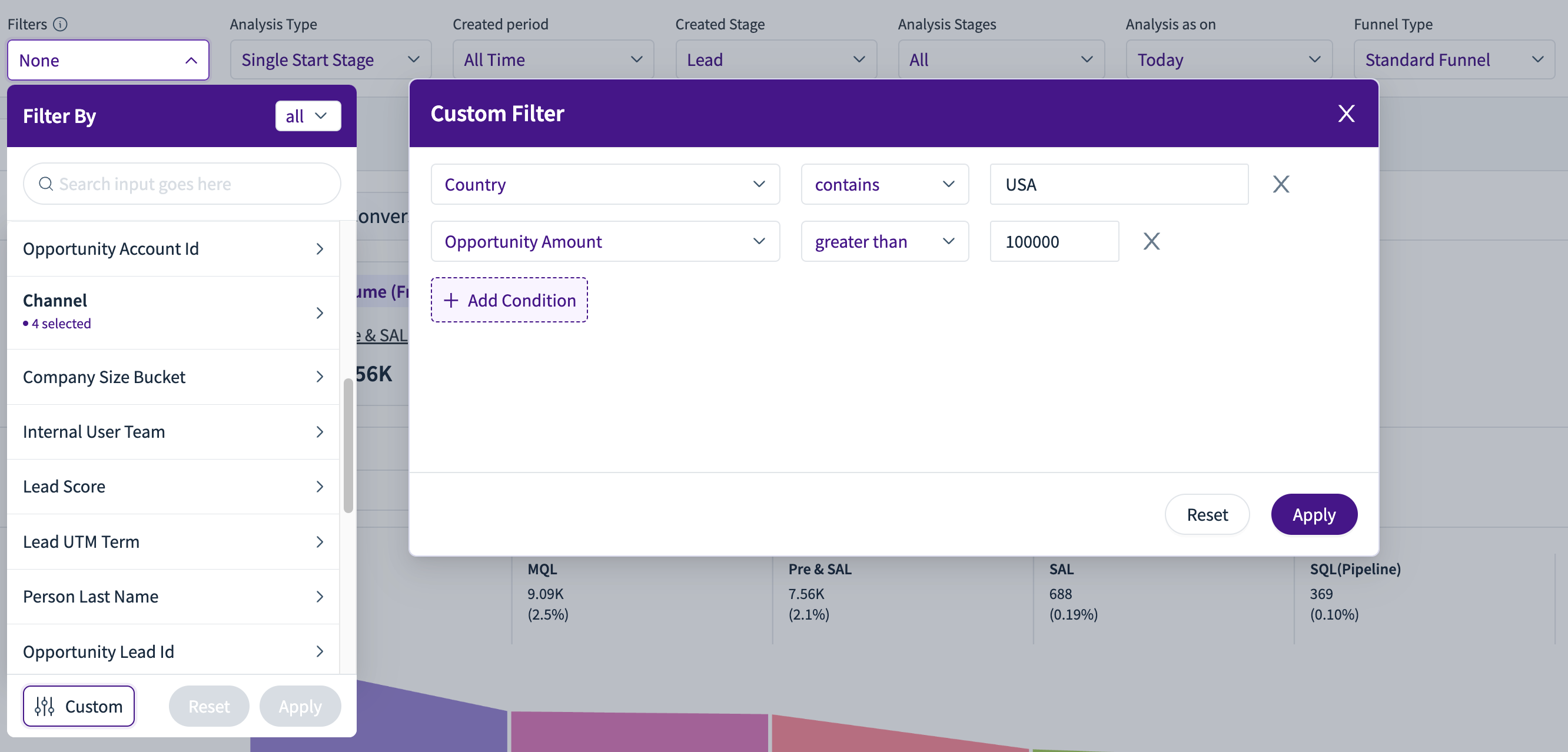
Custom Filter
This allows you to create your own set of filtering rules based on the dimensions, operator, and value.
Analysis Type
Multi Start Stage
In the multi-start stage option, the analysis is done on the cohort across multiple or all stages of the funnel, as of the ‘Analysis as on’ selection. It helps you understand how this cohort moved across the various stages of the funnel or leaked. The table at the bottom of the page provides various metrics for the analysis. /image
Single Start Stage
In the single-start stage option, the analysis is done on the cohort for a selected stage of the funnel, as of the ‘Analysis as on’ selection. It helps you understand how this cohort moved across the various stages of the funnel or leaked. The table at the bottom of the page provides various metrics for the analysis.
Only when the ‘Single Start Stage’ is selected does the ‘Analysis Stages’ option appear. The stage selections in the ‘Analysis Stages’ impact a few metrics like ‘Progressed Volume (From Previous Stage)’.
.png)
Created Period
This is the period for the cohort’s created stage selection. Based on this (along with other filters), the leads.
.png)
Created Stage
Here, you can select the created stage(s) to form the cohort as follows:
Multi Start Stage: You can select more than one created stage from the list to form a cohort.
Single Start Stage: You can select only one stage to create the cohort.
.png)
Analysis As On
The selection here looks at the funnel on the selected date, and the analysis is performed on how the funnel looked on the selected date.
Today
If you select the ‘Today’ option, the analysis of the cohort will be performed based on where the cohort is today in the funnel.
Custom
If you select the ‘Custom’ option, you can choose a date of your choice. Then the analysis of the cohort will be performed based on where the cohort was in the funnel at the selected date.
.png)
Consider only the First Movement
.png)
True: Only the very first transition or touchpoint in each user/account journey is displayed—subsequent loops or repeated entries aren’t shown.
False: All movements, including multiple entries, restarts, or repeated loops in the journey, are included and visualized.