Writing back to SFDC
Writing back to the Salesforce Data Centre (SFDC) refers to writing back the RevSure entity columns to the original data source, which is SFDC.
The purpose of writing back is to optimise the receipt of the analysed data from RevSure into your own data source.
- Objects: Lists the objects that are mapped from SFDC
- RevSure Entity: This section lists the RevSure entities mapped to the Salesforce objects.
How to write back?
Step 1: Go to; Data Hub > Data Sources
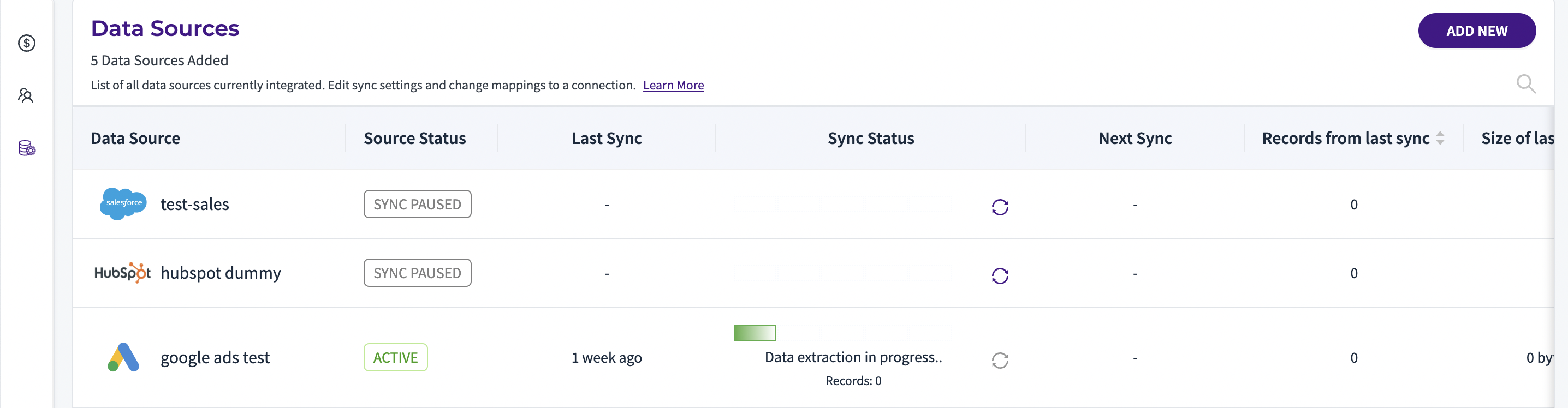
Step 2: Scroll to the Salesforce Carousel > Actions > Edit Connections
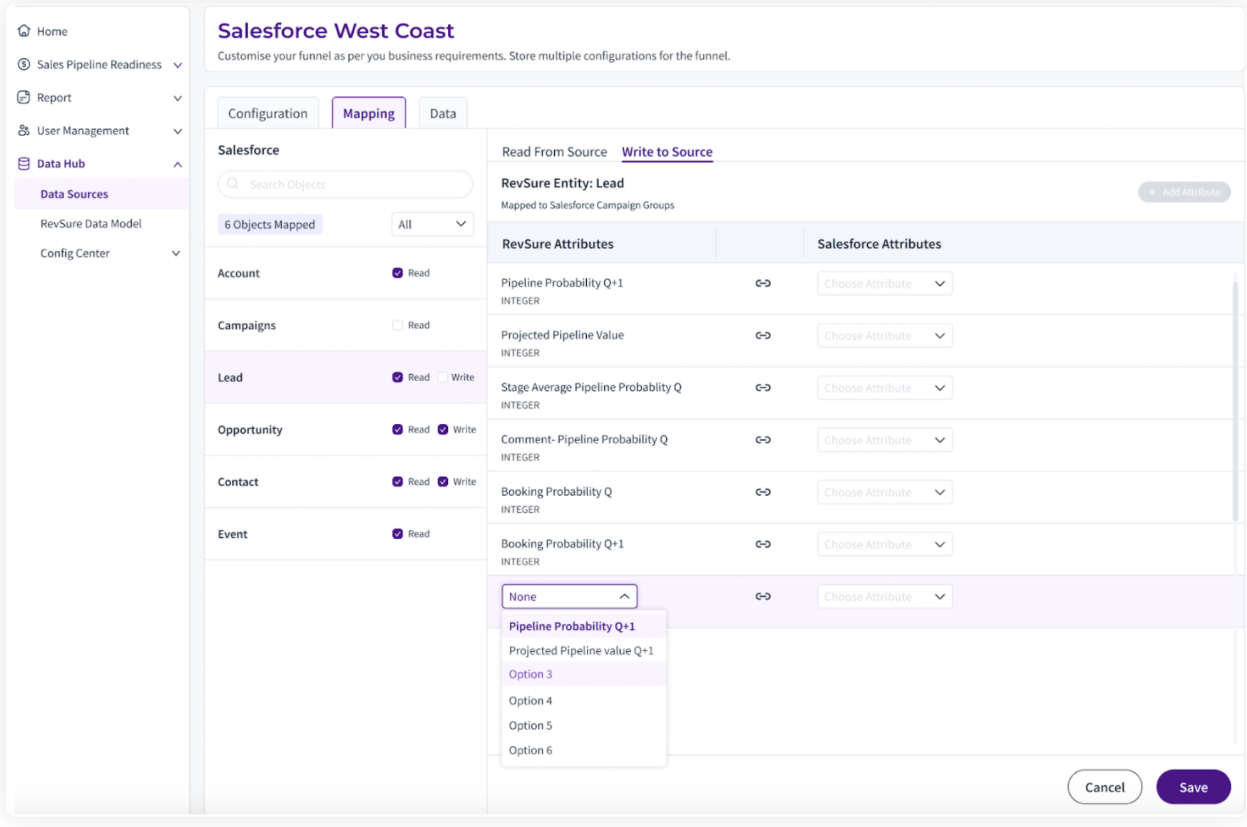
Step 3: On landing the data source page, choose the Mappings tab
Step 4: Scroll down to check the objects that can be written back (you will see a “write” checkbox). Currently, the SFDC Lead, Contact, and Opportunity objects can be written back
Step 5: Choose the object that you want to write back to, then click Write to Source, and then choose the attributes you want to write back.
Note: Conversion probabilities will be written back with a % suffix. Predicted $ values will be written back with $ suffix
Step 6: You can review and confirm the write-back object.
Note: Use the delete button present in the attributes list to remove writeback of any source attribute from RevSure to SFDC.
Confirm Write To Source
Once you are done reviewing the write-back objects, you can click Confirm “Save Mappings” to start the data sync.