RevSure Integration Permission Specifications for RevSure.AI Application
Salesforce
Standard licence Salesforce user with API enabled. User should be able to access Salesforce UI (API Only User should not be enabled in the profile)
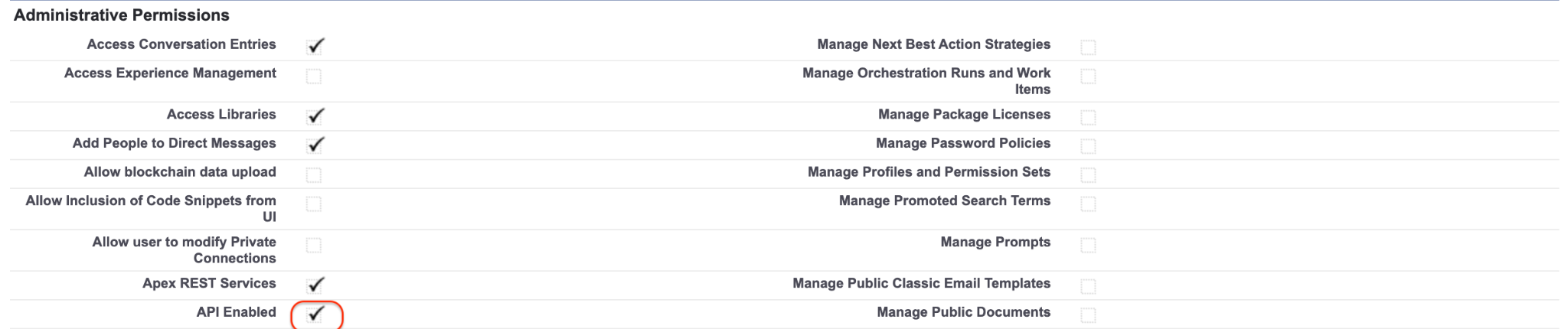
Objects read by default:
Other customer attributes and objects
Account |
|---|
Campaign |
CampaignMember |
Contact |
Event |
Forecasting Fact |
Forecasting Item |
Forecasting Type |
Lead |
Lead History |
Lead Status |
Opportunity |
Opportunity Stage |
Period |
Product |
Task |
Events |
User |
OpportunityHistory |
OpportunityLine item |
Contact History |
OpportunityContactRole |
OpportunityPartner |
CampaignInfluence |
HubSpot
For a non admin user, the below permissions are required: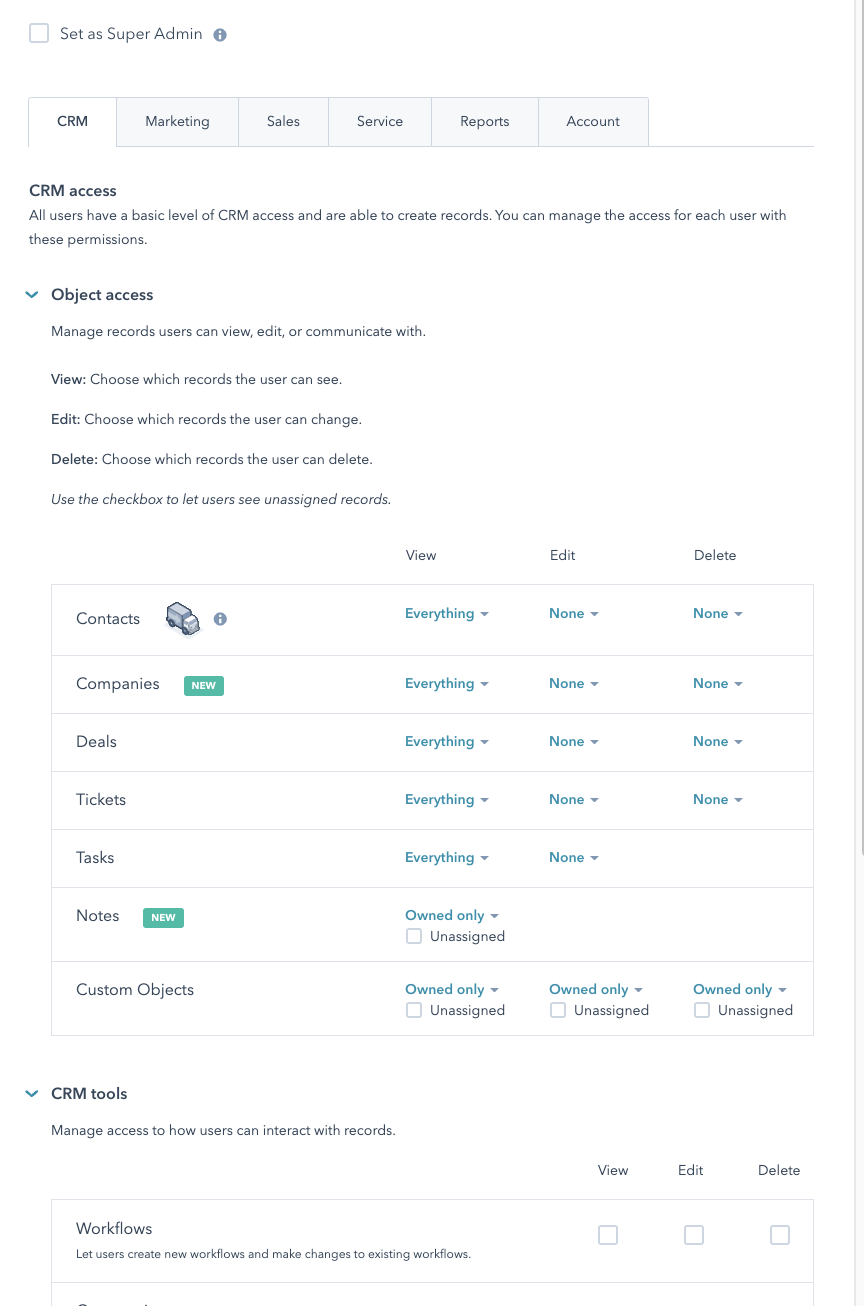
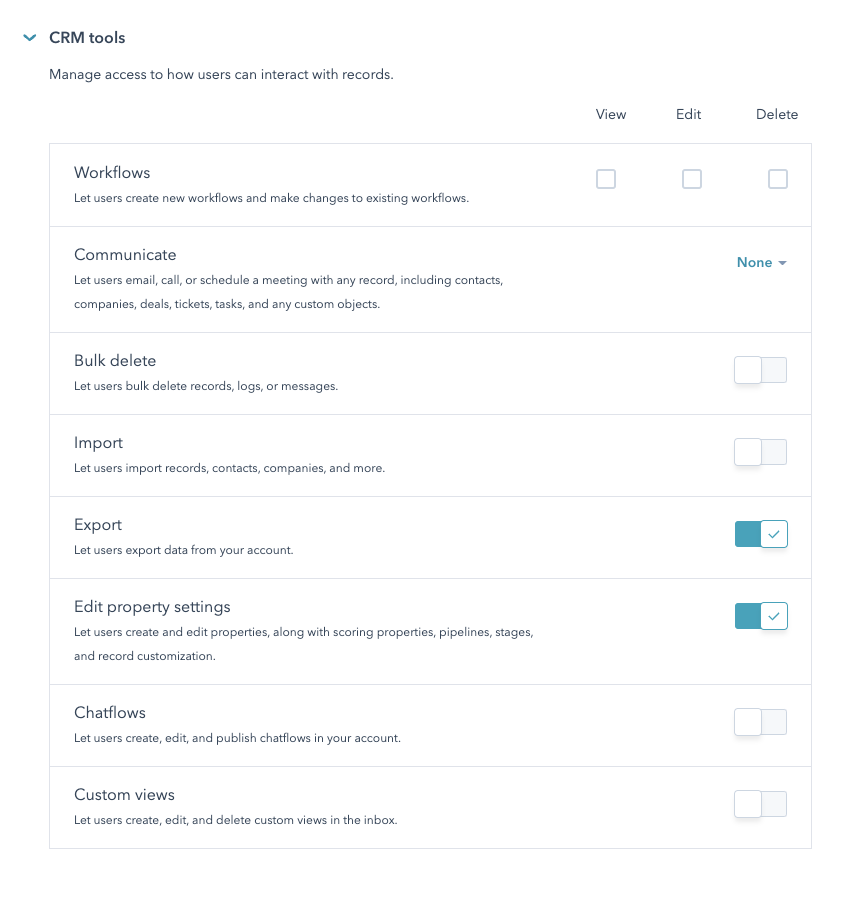
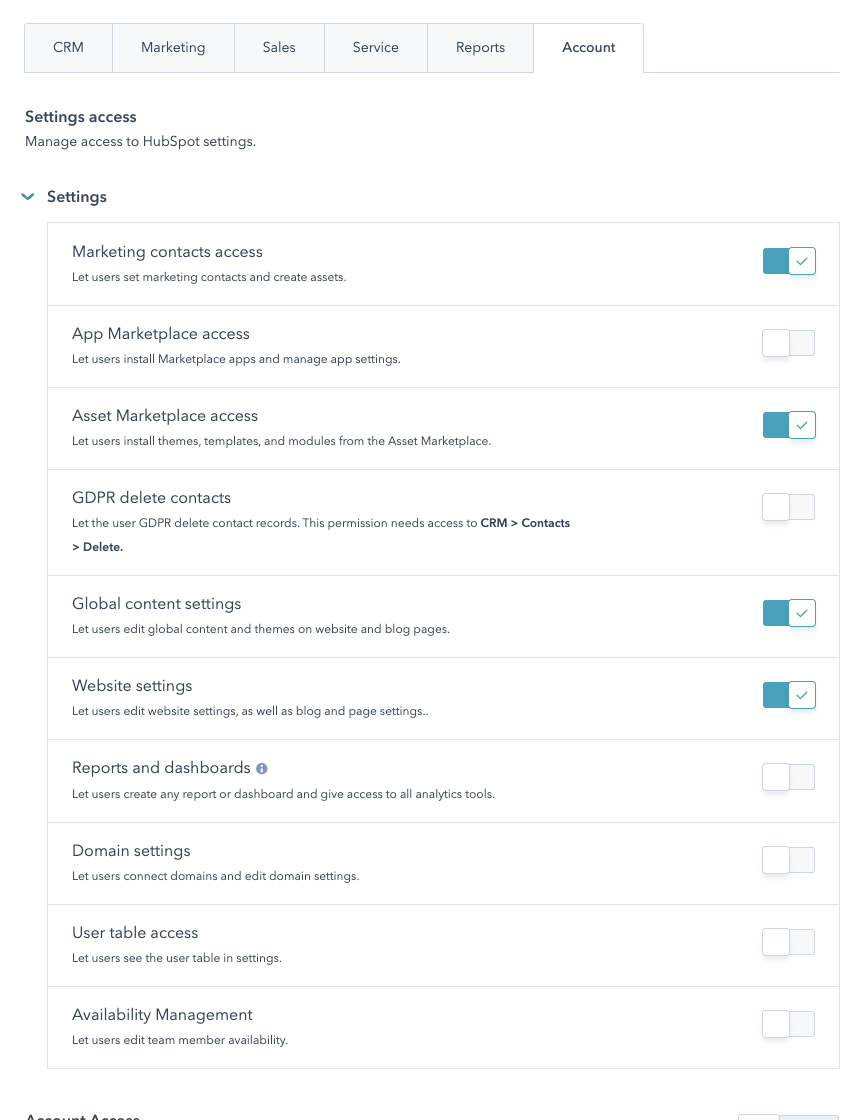
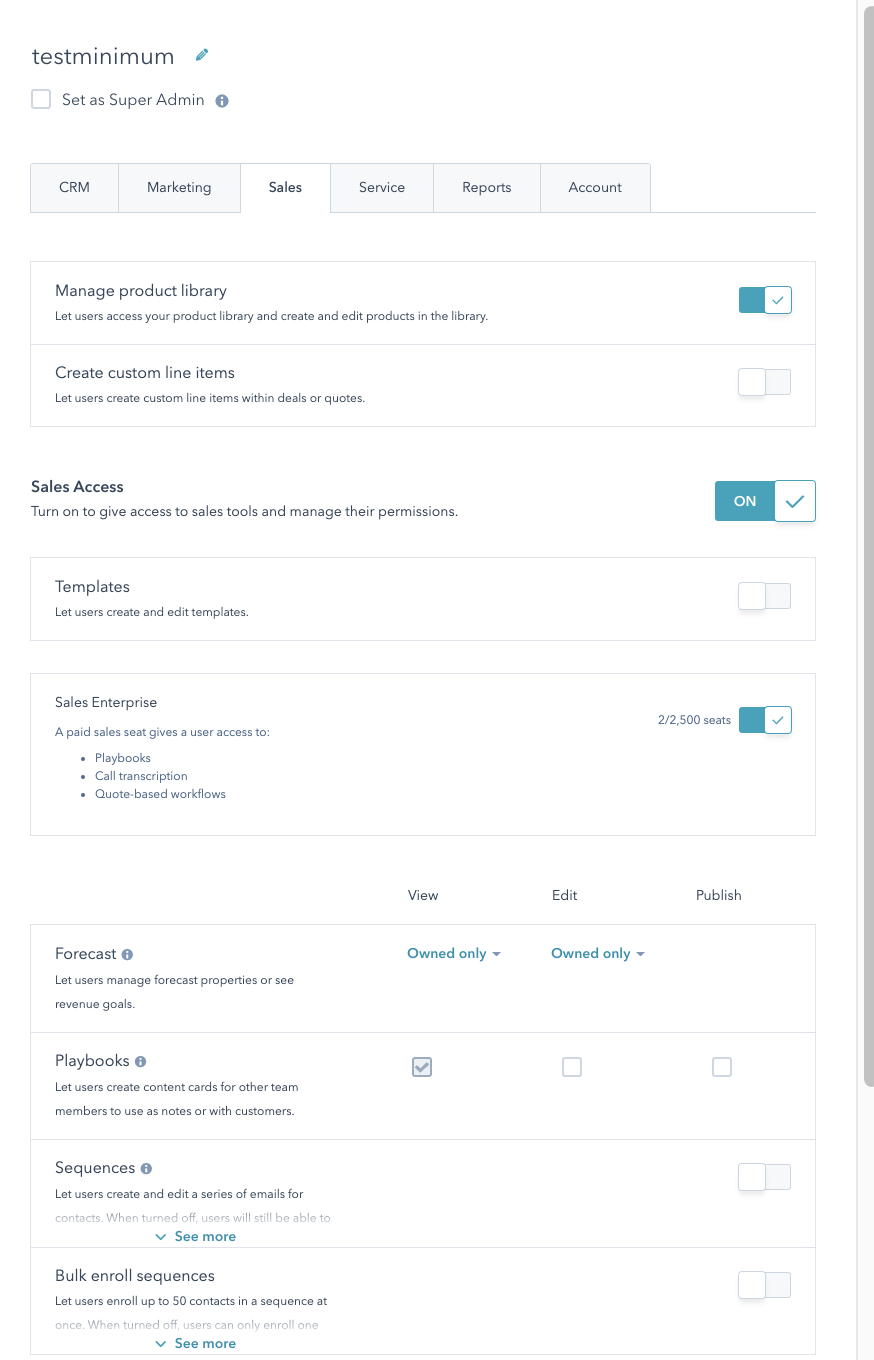
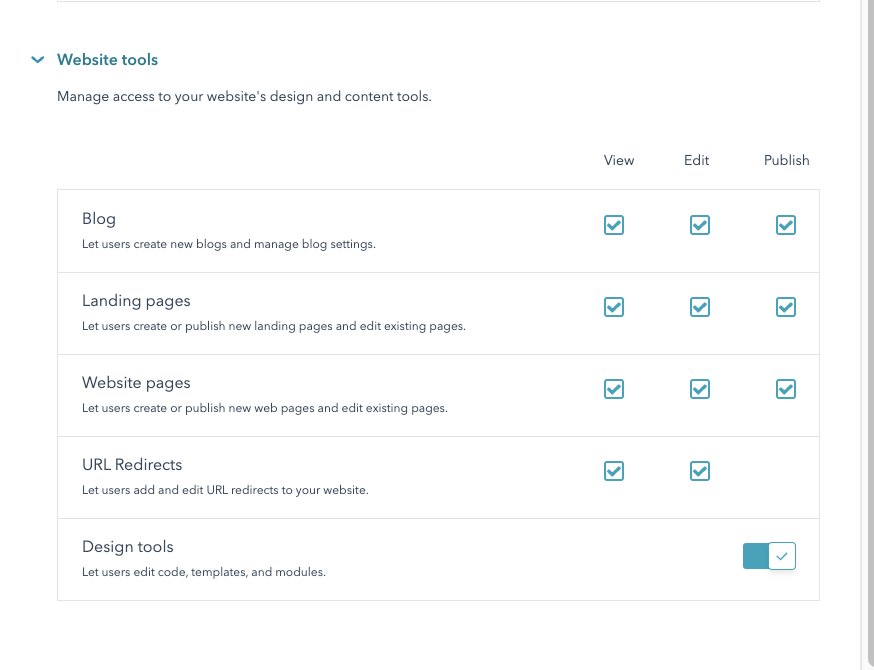
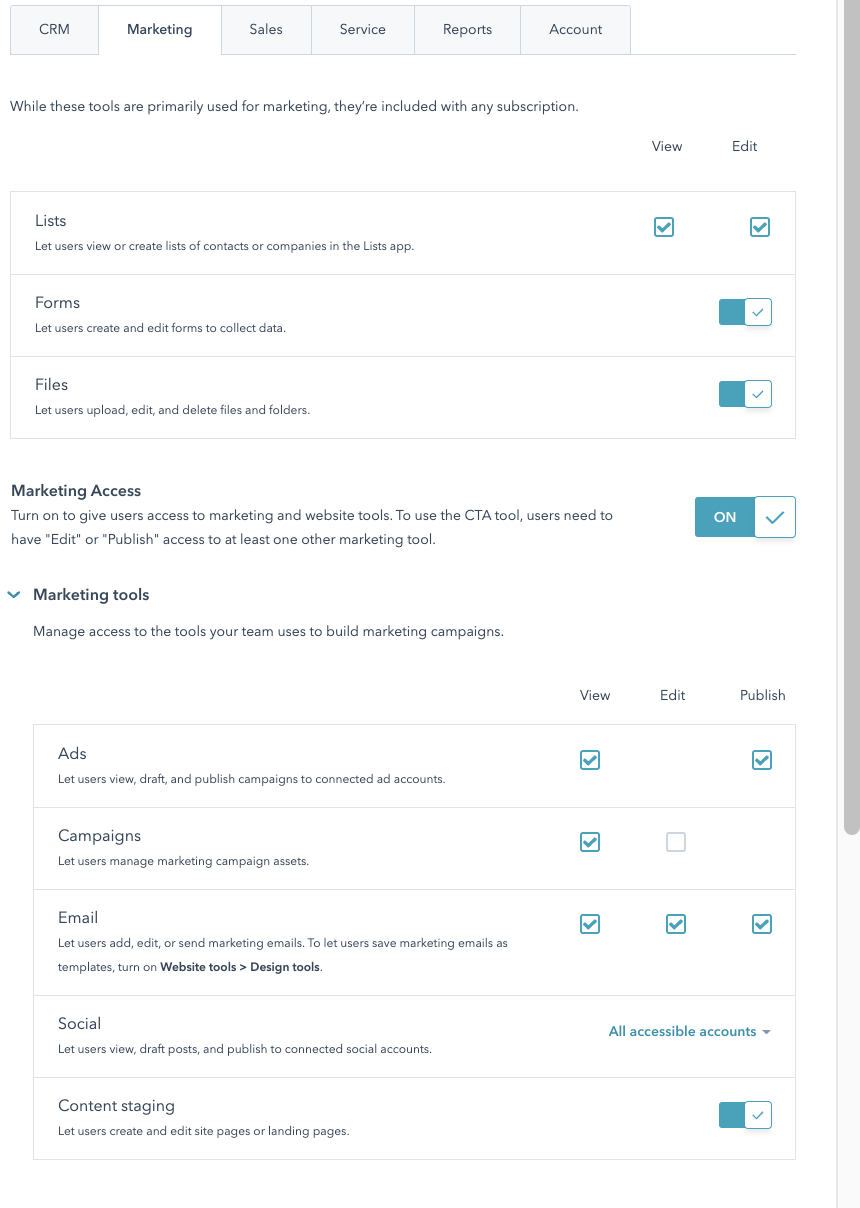
Objects read from HubSpot
Contacts |
|---|
Companies |
owners |
Pipelines/contacts |
Pipelines/deals |
products |
deals |
line_items |
Calls |
Emails |
Meetings |
Marketing Emails |
Forms |
Web Analytics Events |
Email Analytics |
Marketo
First you’ll need login to your instance and go to the Admin menu, then to Users and Roles.
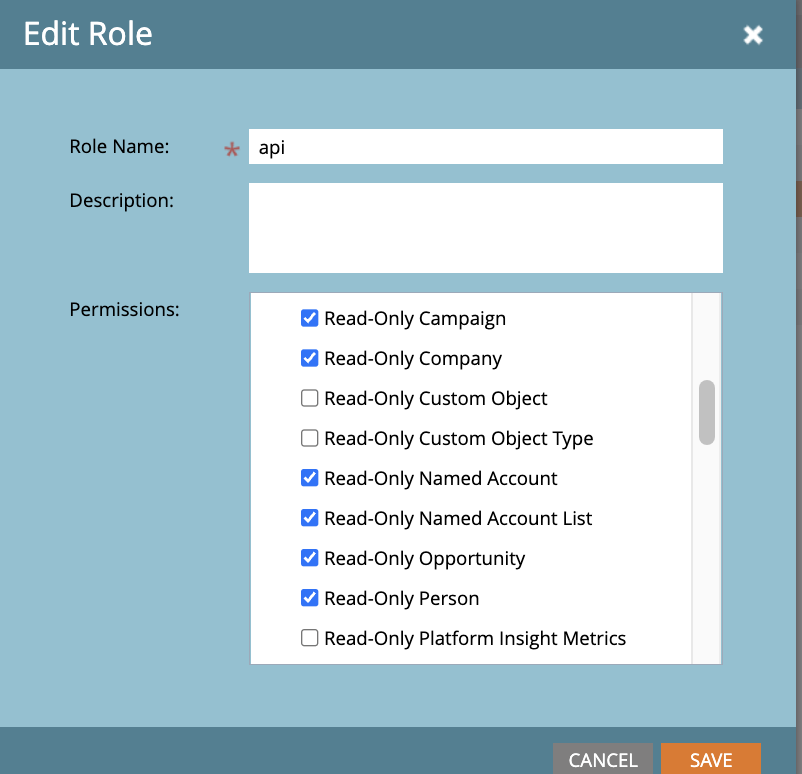
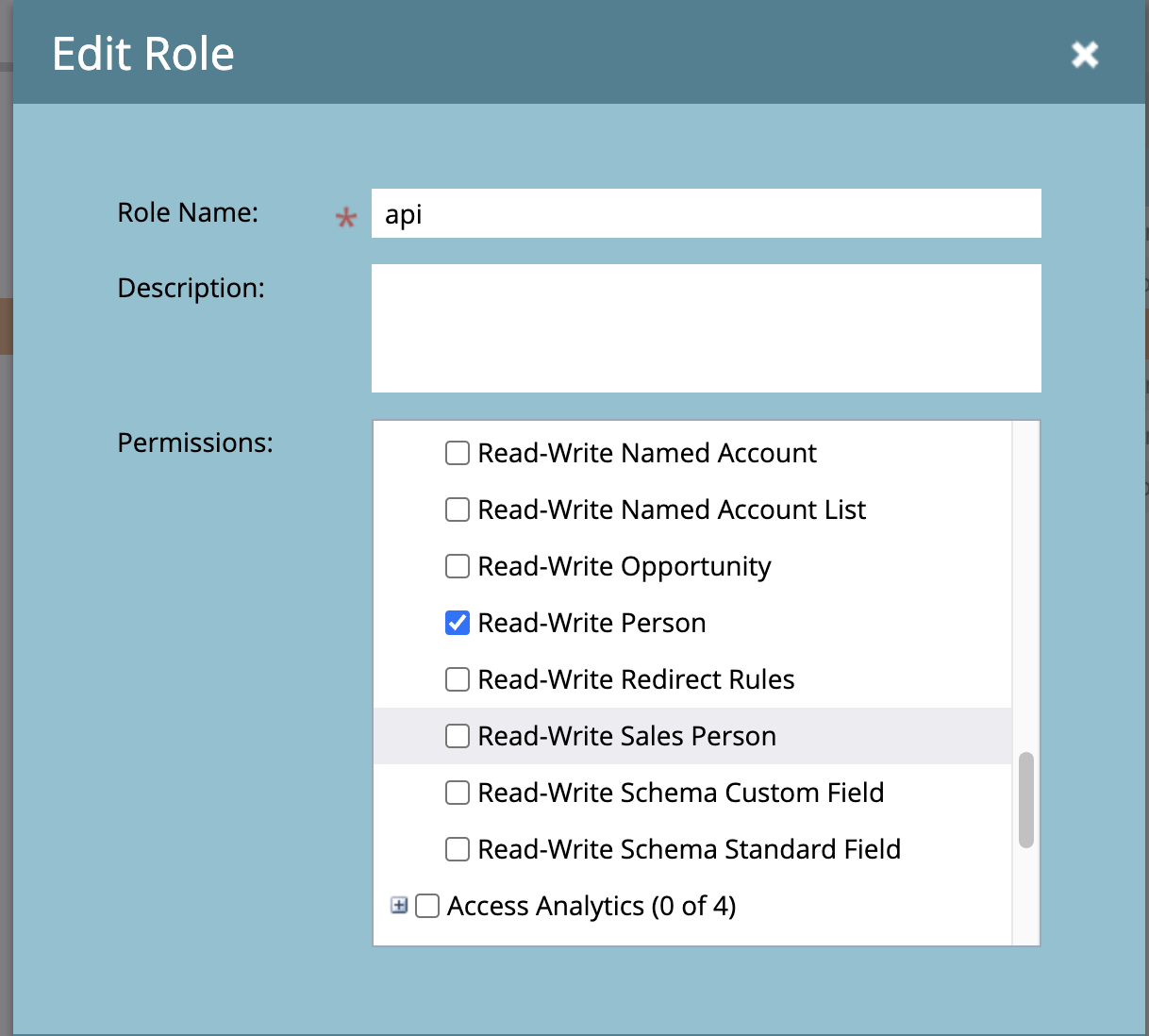
Click on the Roles tab, and then add a New Role and assign below permission to the role in the Access API group
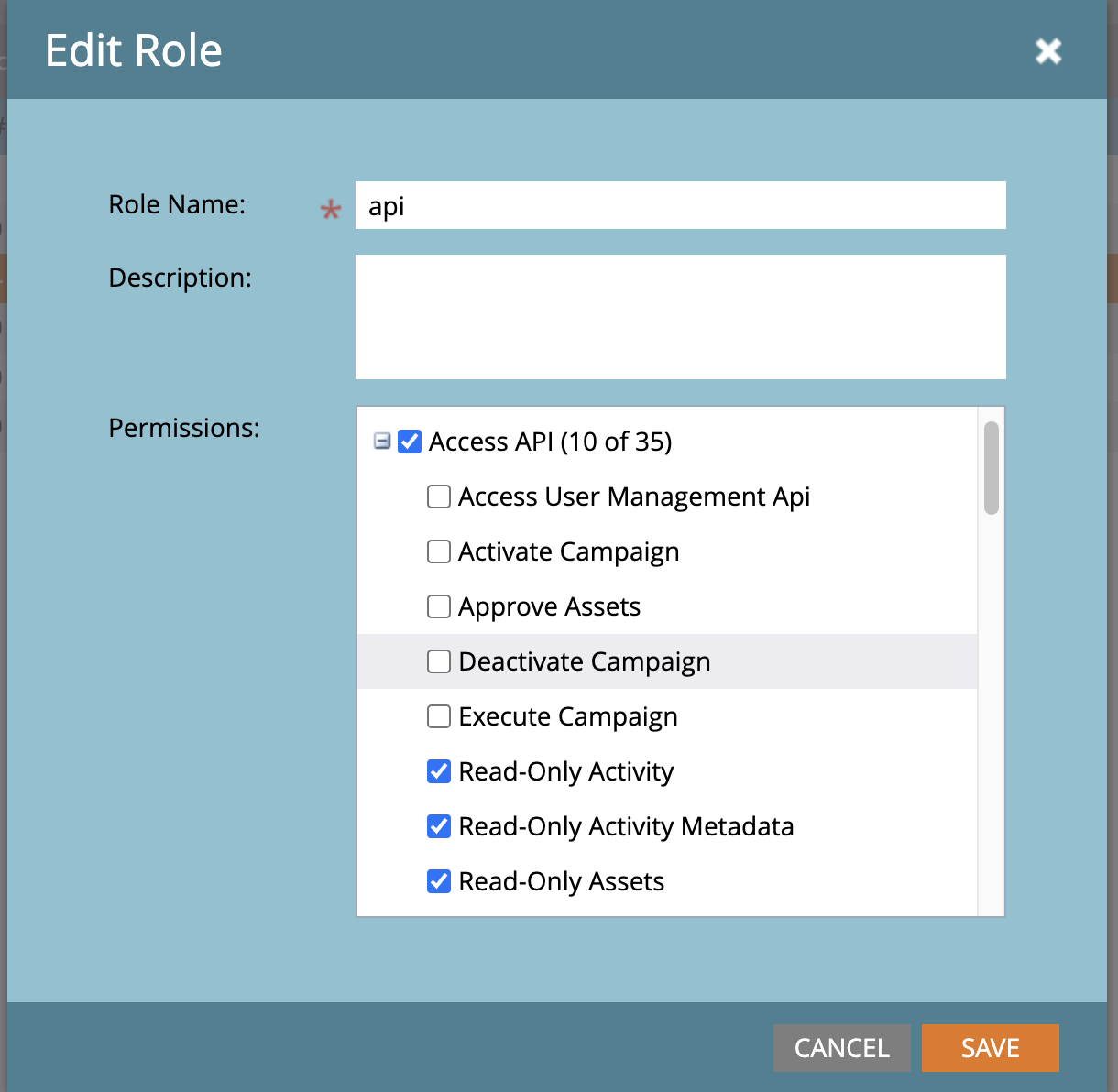
For write back
Now, head back to the Users tab and click on Invite New User.
Then
Create Api User and assign the user API role that you just created and click on Next this would be used by the application to integrate with marketo system.
For UI access create a user with shared and Assign your user the API role that you just created and click on Next.
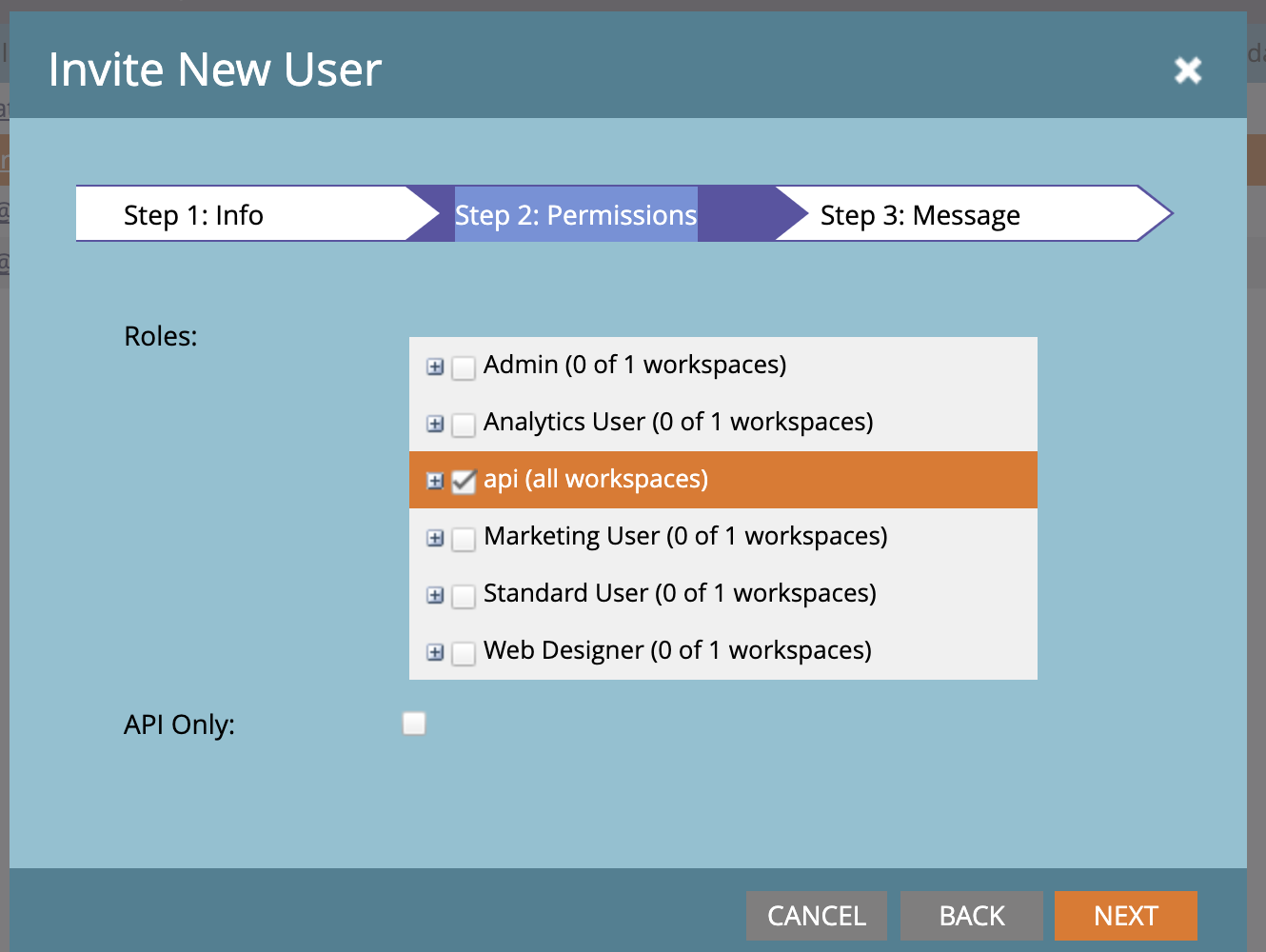
NOTE: Do not check the box below the list in the above image ‘API Only’
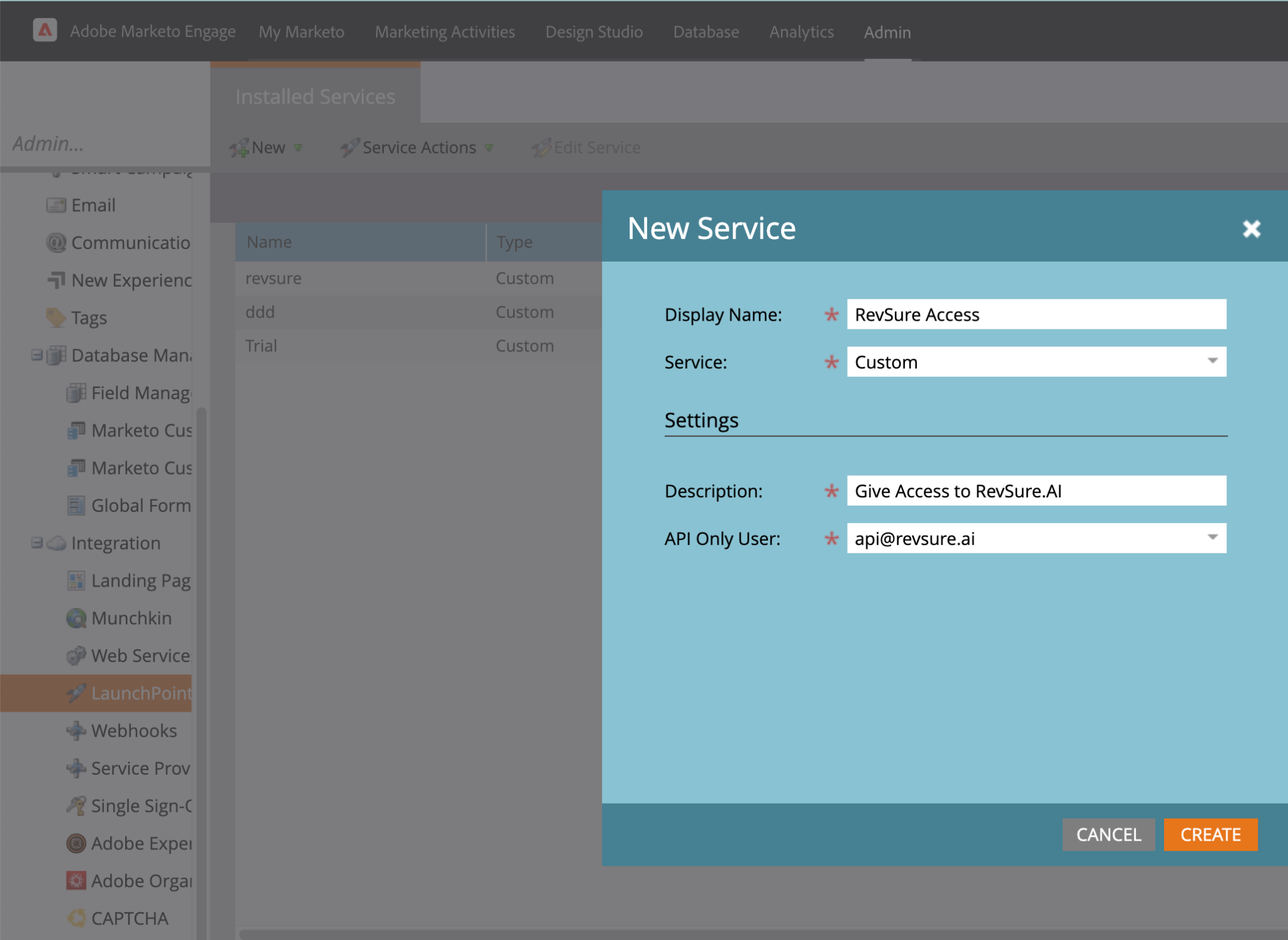
Next, go to the Admin menu, then to LaunchPoint.
Click on the New menu and select New Service. Select your new user from the API Only User dropdown menu and click on Create.
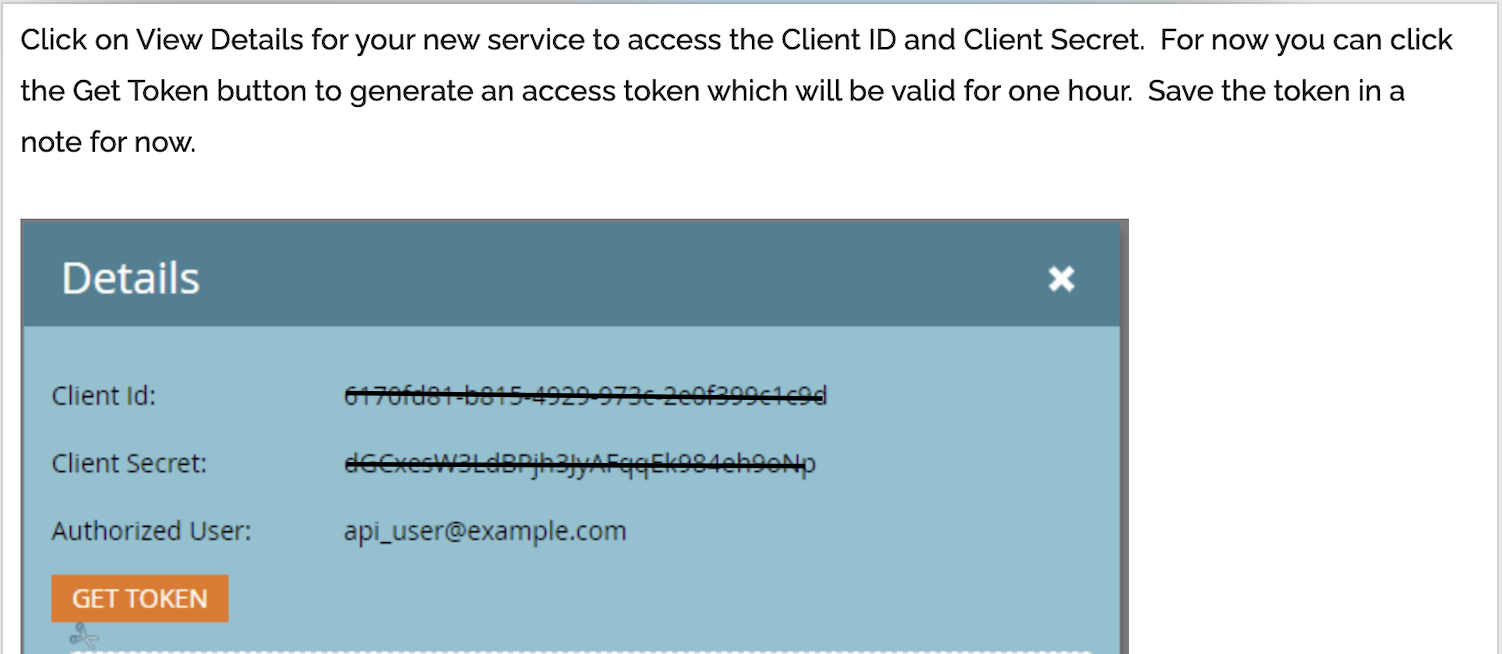
Next, go to the Admin menu, then to Web Services.
Find the Endpoint in the REST API box 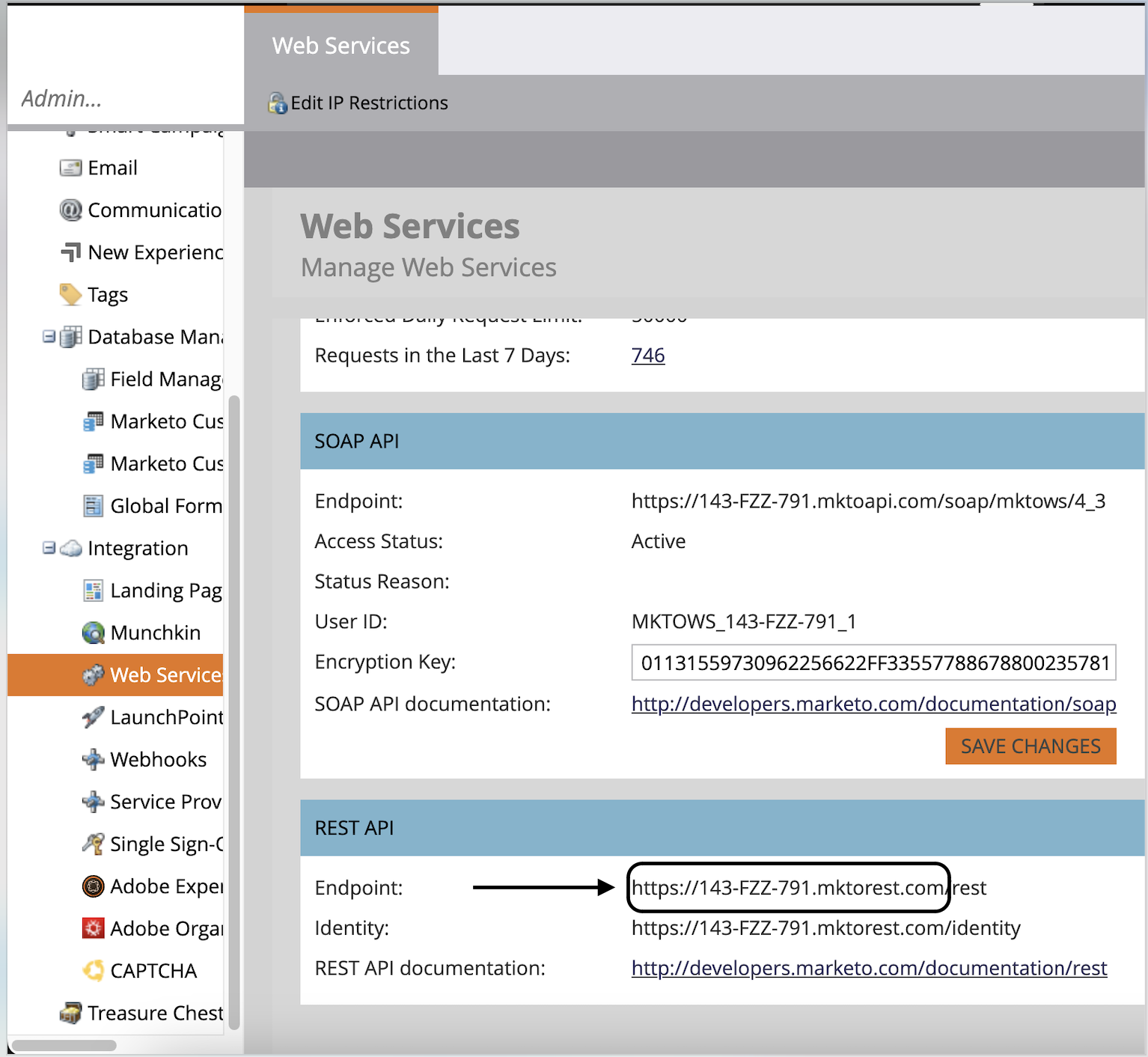
The above mentioned client Id, Client Secret And Endpoint is required to create connection in RevSure.AI.
Objects Read from Marketo
Marketo |
|---|
Activities |
ActivityTypes |
Campaigns |
Leads |
ProgramMembers |
Programs |
Marketo documentation link https://developers.marketo.com/rest-api/
For a non-admin user, a user with below permissions/role is required
r_liteprofile
r_emailaddres
r_ads
r_marketing_leadgen_automation
r_ads_reporting
rw_conversions
User with Viewer role and LEAD_GEN_FORMS_MANAGER on company page is required to read data from below objects.
Objects Read from LinkedIn
Campaign |
|---|
Campaign Groups |
Ad analytics |
posts |
Lead form and responses |
Google Ads
Google Ads user with Read only Access level is required to read data from below objects
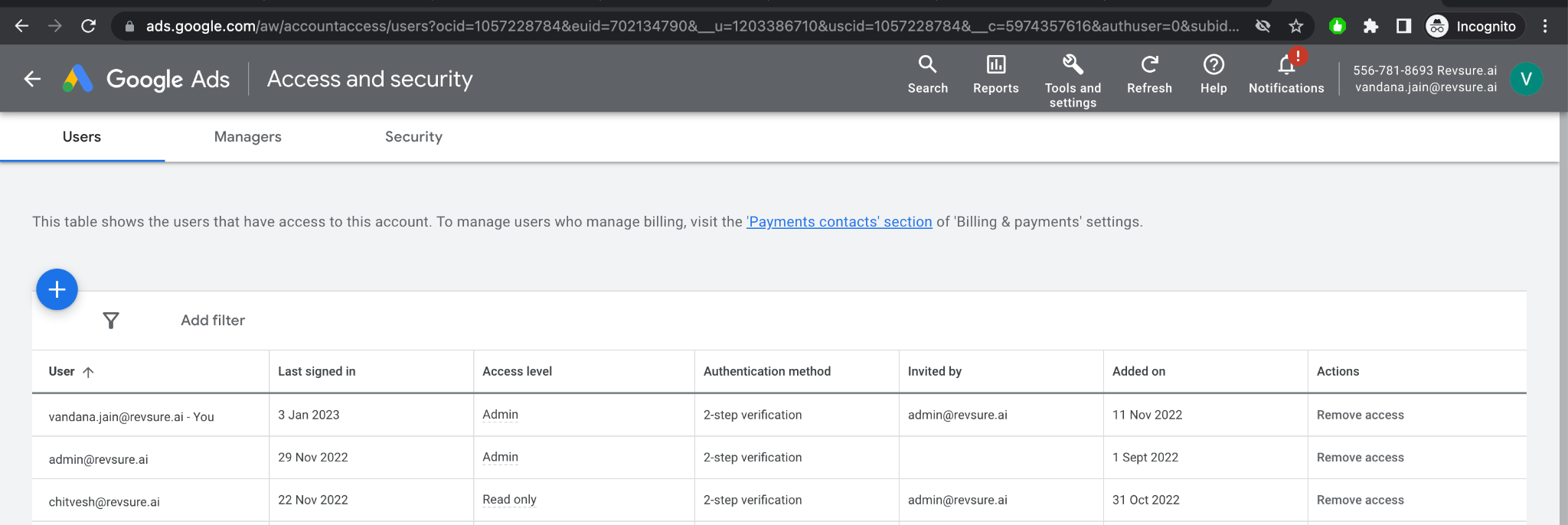
Objects Read from GOOGLE ADS
GOOGLE ADS |
|---|
Campaign |
Campaign Groups |
Ad Group Ad |
Click View |
Meta Ads
Facebook Ads Manager user with minimum Ad account analyst role is required to read data from below objects
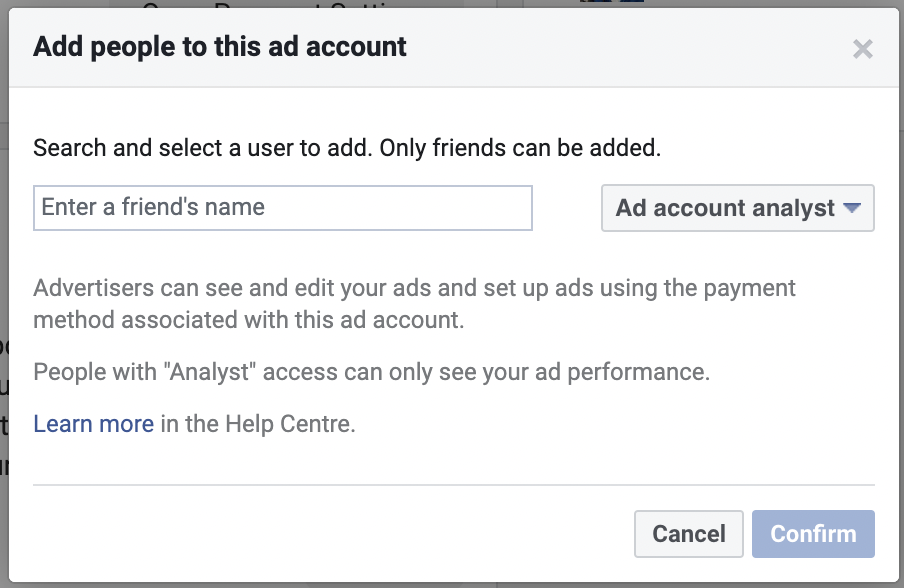
Objects Read from Meta ADS
Meta ADS |
|---|
Campaign |
Campaign Insights |
Ad |
Ad Insights |
Ad Set |
Outreach
User with Read Permissions to objects
Objects Read from Outreach
Outreach |
|---|
Prospects |
Mailings |
Sequences |
Tasks |
Users |
Sequence Steps |
Teams |
Roles |
Calls |
Call dispositions |
Salesloft
Admin user is required to be able to fetch data
Objects Read from Salesloft
Salesloft |
|---|
People |
Users |
Cadence |
Cadence Memberships |
calls |
Activity history |
Tasks |
Call dispositions |
Pardot
Objects Read from Pardot
Pardot |
|---|
Campaigns |
List Memberships |
Users |
opportunities |
lifecycle-stages |
prospects |
visitor-activities |
lifecycle-histories |
visitors |
prospect-accounts |
First Party Integration
Revsure Objects
Visitor |
|---|
Events |
Activities |
Campaign |
CampaignMember |
Reauthorize connection
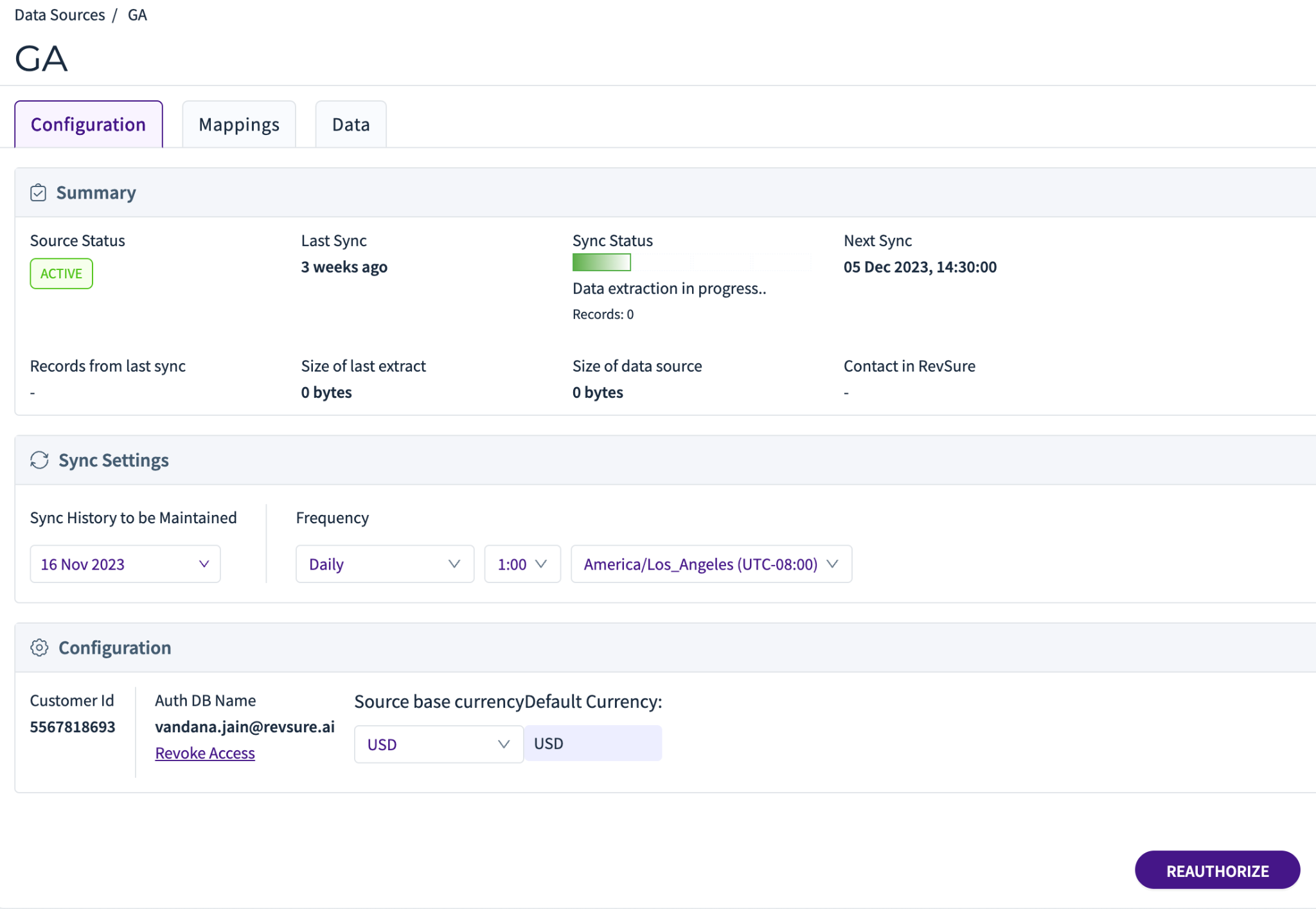
In the Reauthorise connection the user goes through oauth again. It’s required in scenarios when refresh token is expired or change in permission scopes.
Steps to reauthorize listed below:
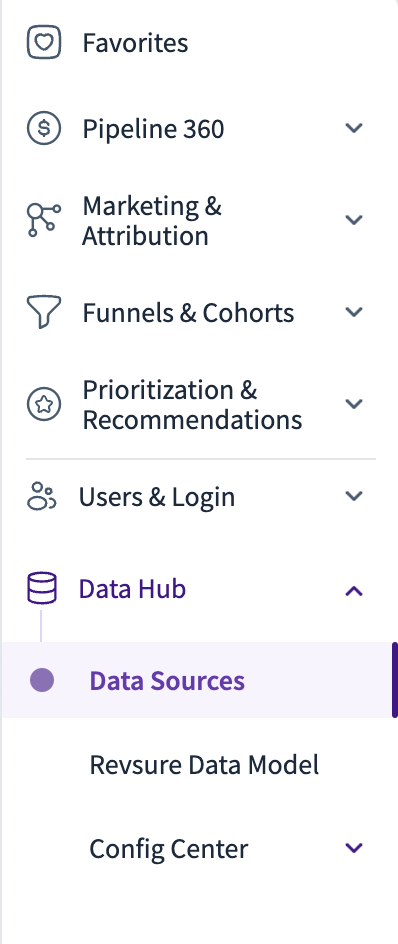
Click on Data Sources
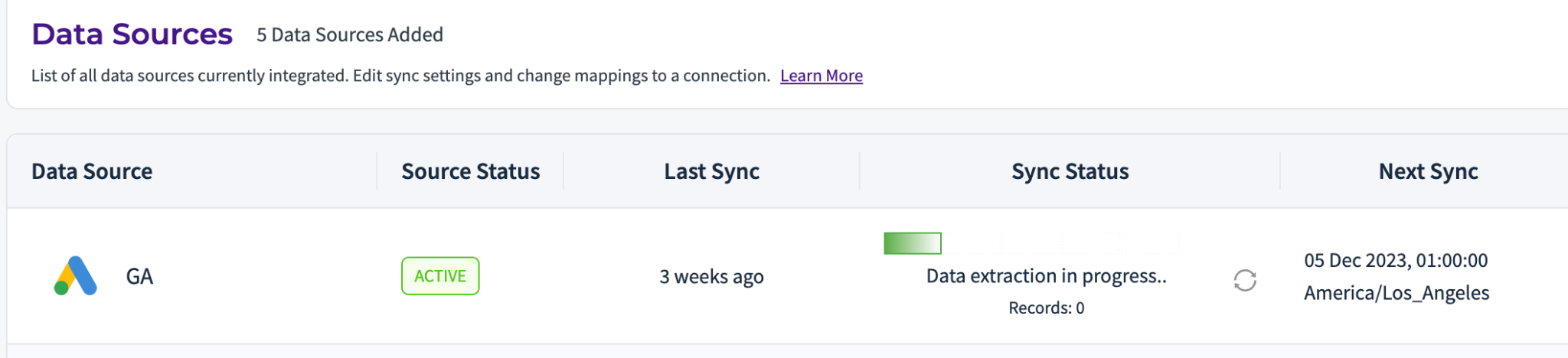
Click on connection name we want to reauthorize
Click on the reauthorize button at the bottom of the screen and login and follow the steps
6 SENSE
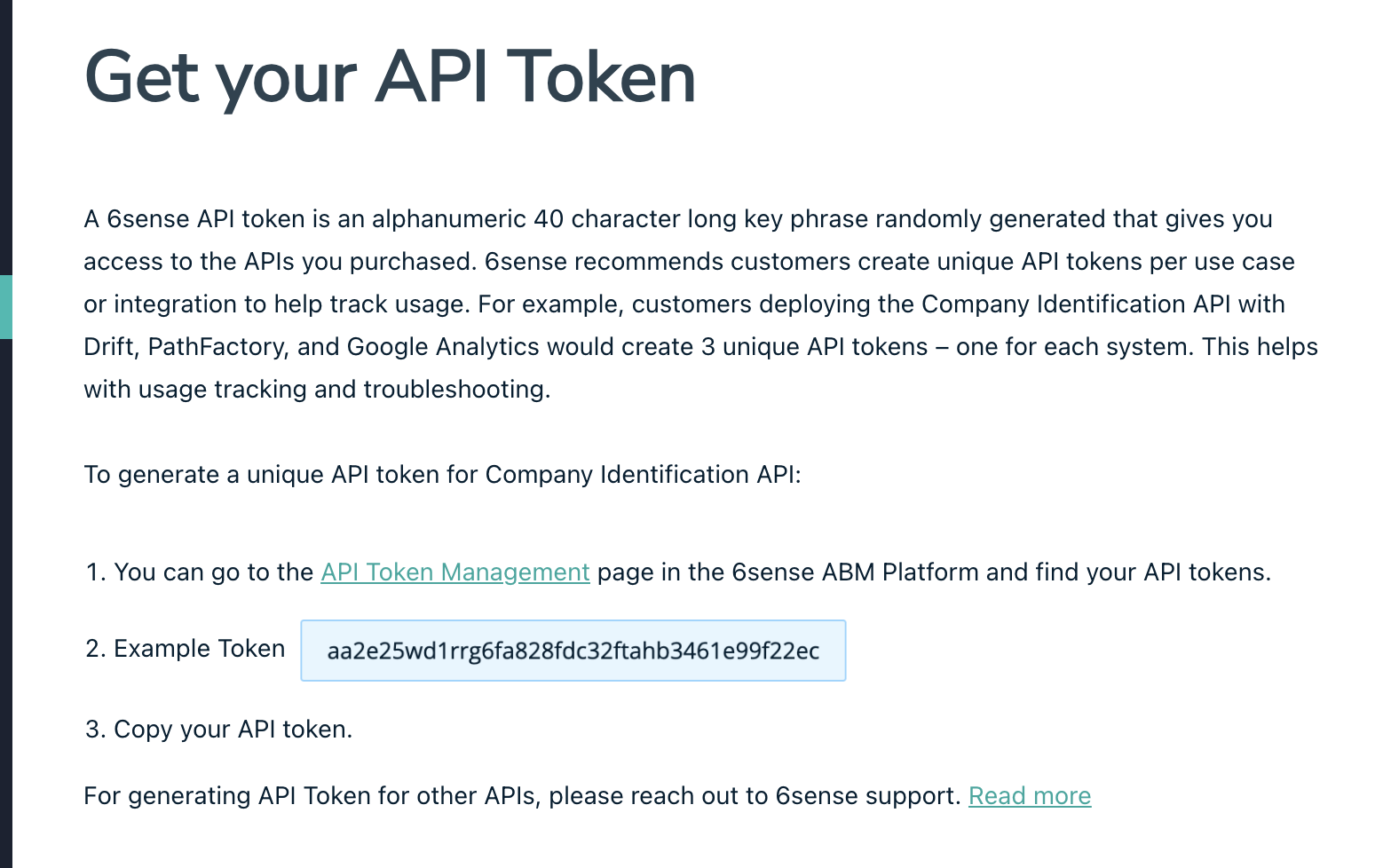
Refer the below doc to get your access token
https://api.6sense.com/docs/#get-your-api-token
IP address enrichment use cases
Access Required: 6sense Platform or Sales Intelligence Package.
Enrichment use cases e.g., account and account scoring
Access Required: 6 Sense Platform subscription and Advanced package for scoring.
Enrichment use cases e.g., Lead
Access Required: Add-on to any Platform or Sales Intelligence package.
Consideration: If the client already enriches this data via another source, integration with 6sense may be unnecessary. Instead, fetch the fields directly from the source to avoid redundant costs.
Mapping Concerns:
For the integration, it’s crucial to ensure that the appropriate inputs are provided to 6sense to receive the desired enriched outputs. The mapping concerns and considerations are as follows:
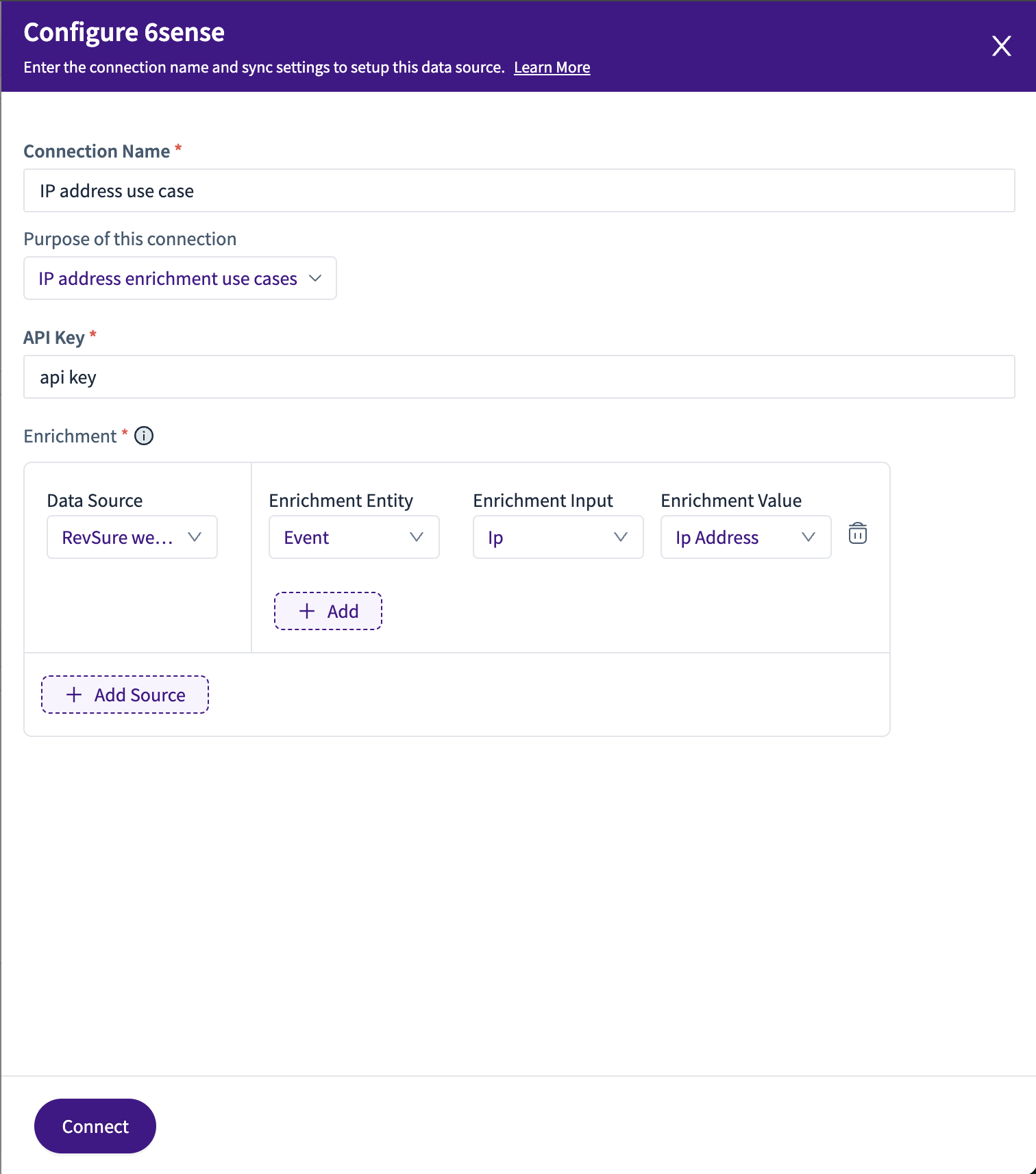
IP Address Enrichment (Company Identification API / Company Details API):
Input Required: IP Address.
Source: First-party pixel, Event enrichment entity, IP for enriched input, IP Address enriched value.
Example :
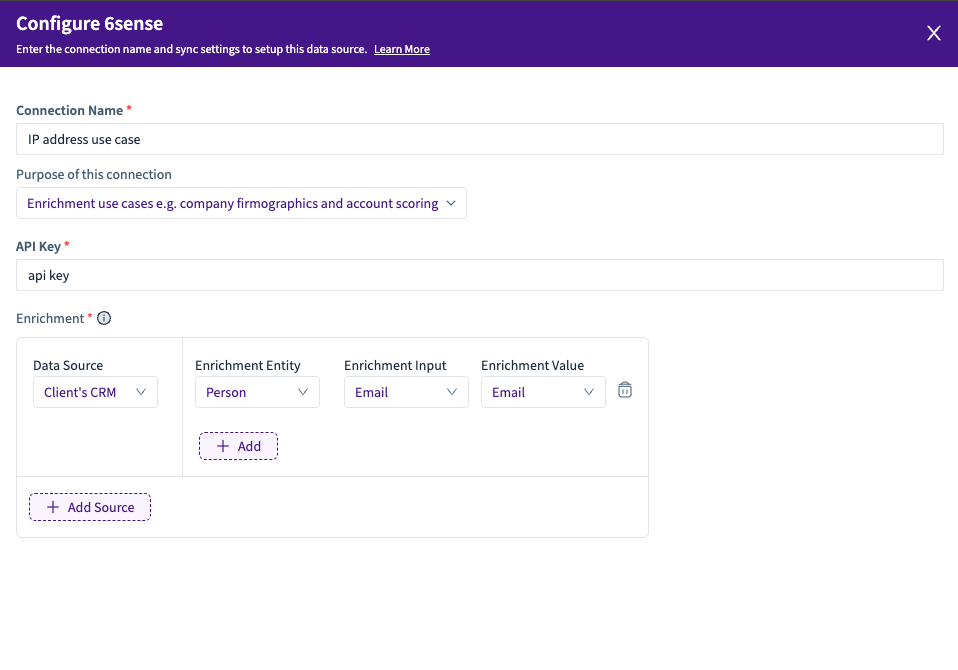
Company Firmographics and Account Scoring (Lead Scoring and Firmographics API / Lead Enrichment and Scoring API):
Input Required: Email ID.
Source: Client’s CRM. Inputs would involve Person/Account (object) enrichment entity, Email as Enrichment input, and Email as Enrichment value
Example :
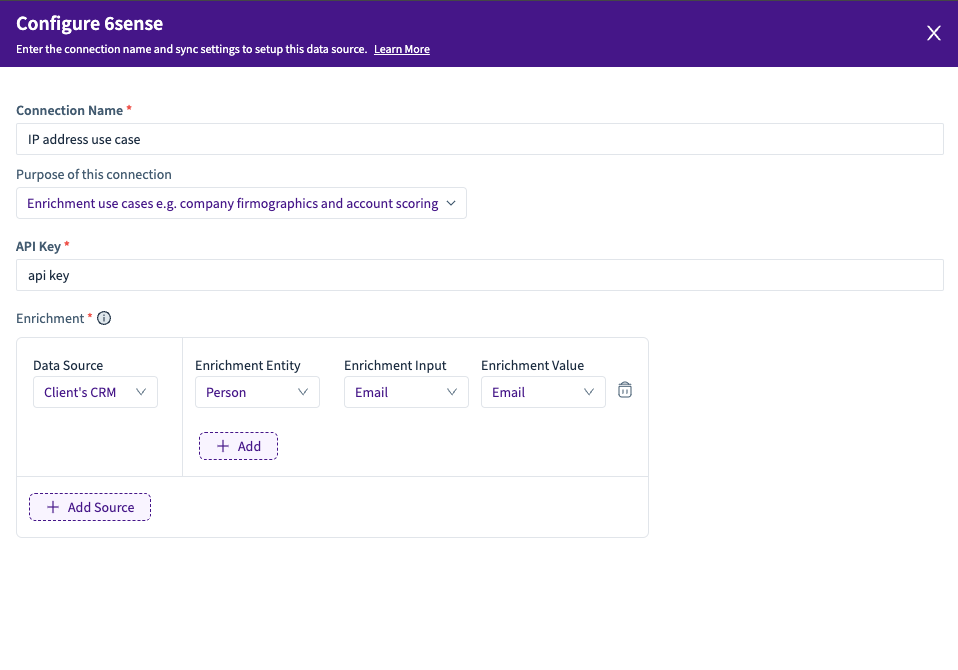
Lead Firmographics (People Enrichment API):
Input Required: Email ID.
Source: Client’s CRM. Inputs include Person/Account (object) enrichment entity, Email as Enrichment input, and Email as Enrichment value.
Example :
Please note that a separate connection will need to be created for each use case. It’s important to consider the associated costs, especially if the data is already being enriched from other sources. If it is, we might be able to skip certain integrations to avoid redundant expenses.