Overview
RevSure’s Data Platform consolidates all the Activities and Campaign Touch points along with Funnel Stage movements for all the Leads, Opportunities and Accounts in its engagements dataset. Based on all the Campaign Touch points captured in engagements dataset, RevSure also creates an attribution_reporting dataset, which contains the attribution weights for different Attribution Models supported in the Demand Generation Effectiveness module.
RevSure supports writing these two datasets to Salesforce as custom objects to enable creation of attribution reports within Salesforce as well as to provide visibility into all the engagements associated with other key standard objects. This document outlines the details of this Salesforce integration.
Salesforce Objects
As part of the RevSure - Salesforce Write Back workflow, RevSure will create the following two custom objects in Salesforce.
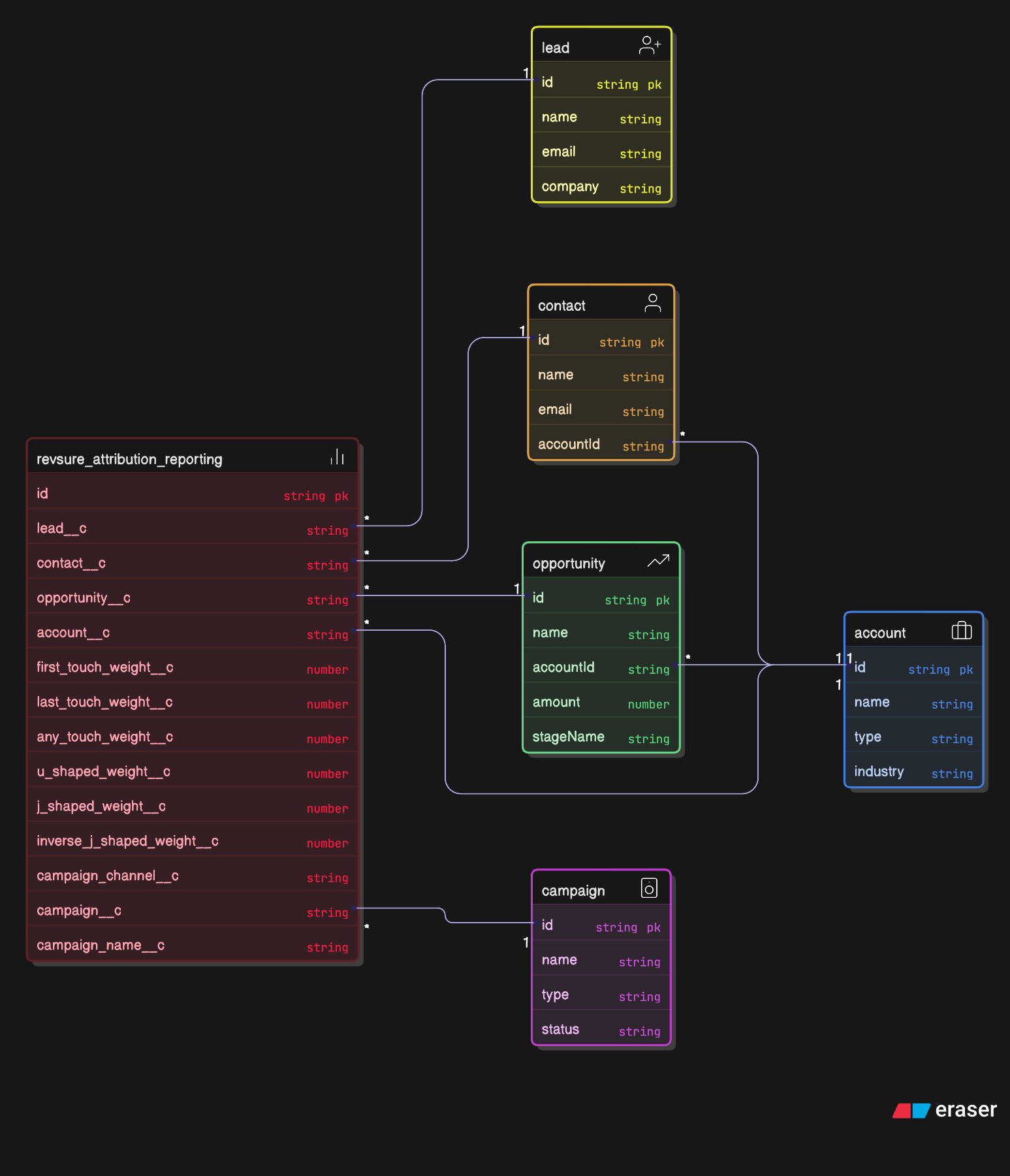
Attribution Reporting
Object Name: RevSure Attribution Reporting
Object API Name: rs_attribution_reporting__c
Description: Object stores the attribution weights for different attribution models calculated by RevSure for each Lead, Opportunity and Account.
Granularity: (lead_id,opportunity_id,account_id, campaign_id, revsure_funnel_stage_name, campaign_member_association_type)
Object Schema: RevSure Attribution Data Salesforce Object Schema
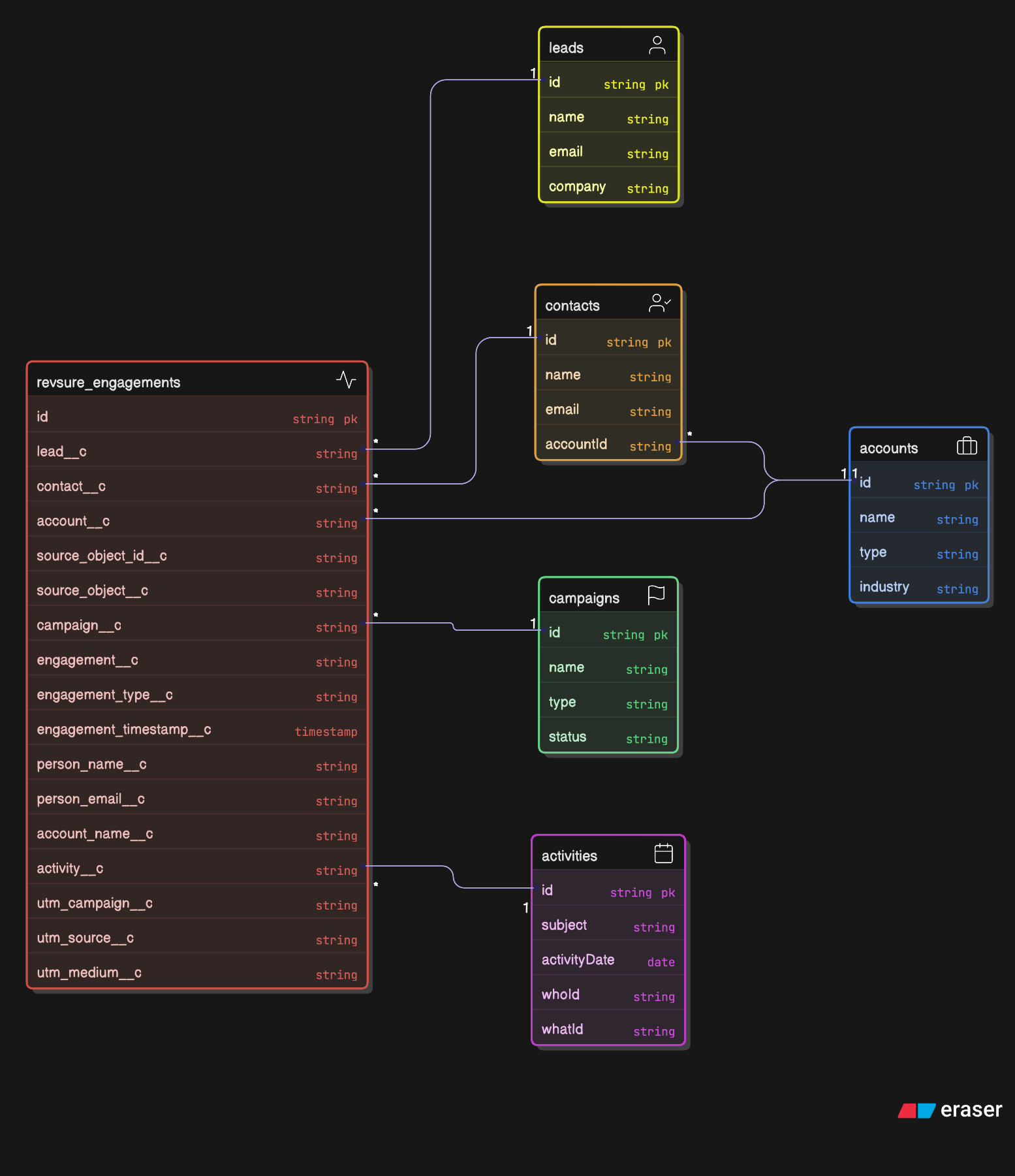
Engagements
Object Name: RevSure Engagements
Object API Name: rs_engagements__c
Description: Object stores engagement touchpoints and interactions from various Salesforce associated with Leads, Contacts, and Accounts for attribution analysis.
Granularity: (source_object_id, engagement, engagement_type)
Object Schema: RevSure Attribution Data Salesforce Object Schema
Sync Mechanism
Both datasets will be refreshed in Salesforce once a day as soon as the data ingress completes in RevSure. The following Salesforce Bulk API endpoints are used to push the data into Salesforce.
Create Job: POST https://{{instance_url}}/services/data/v59.0/jobs/ingest
Content: {
    "object": "<object_name>",
    "operation": "upsert",
    "externalIdFieldName": "<external_field>"
}
Upload Data: PUT https://{{instance_url}}/services/data/v59.0/jobs/{jobId}/batches
Content: CSV data with records
Start Job: PATCH https://{{instance_url}}/services/data/v59.0/jobs/{jobId}
Content: {"state": "JobComplete"}Get Results: GET https://{{instance_url}}/services/data/v59.0/jobs/{jobId}/batches/result
Object Relationship Diagram
Attribution Reporting
Engagements
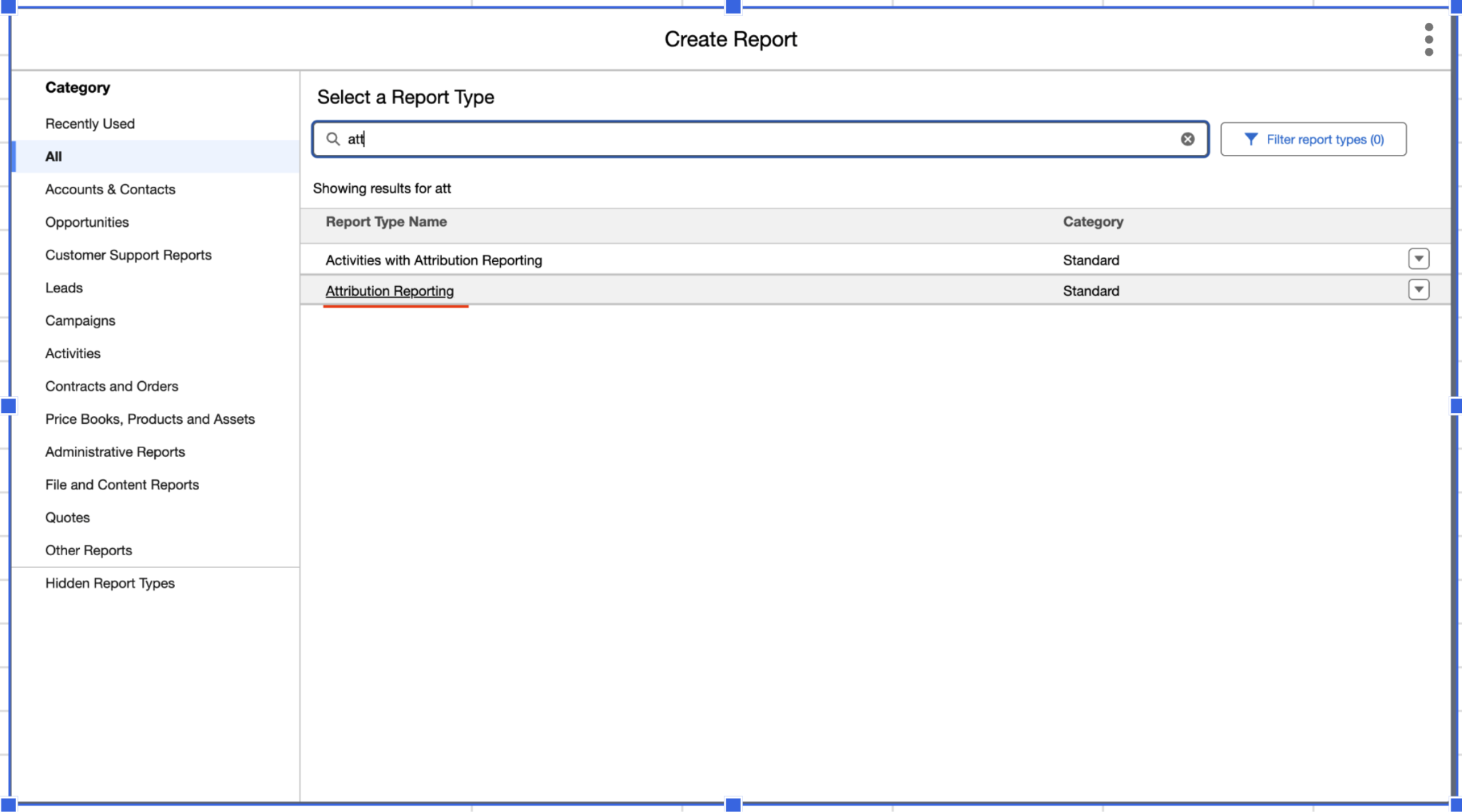
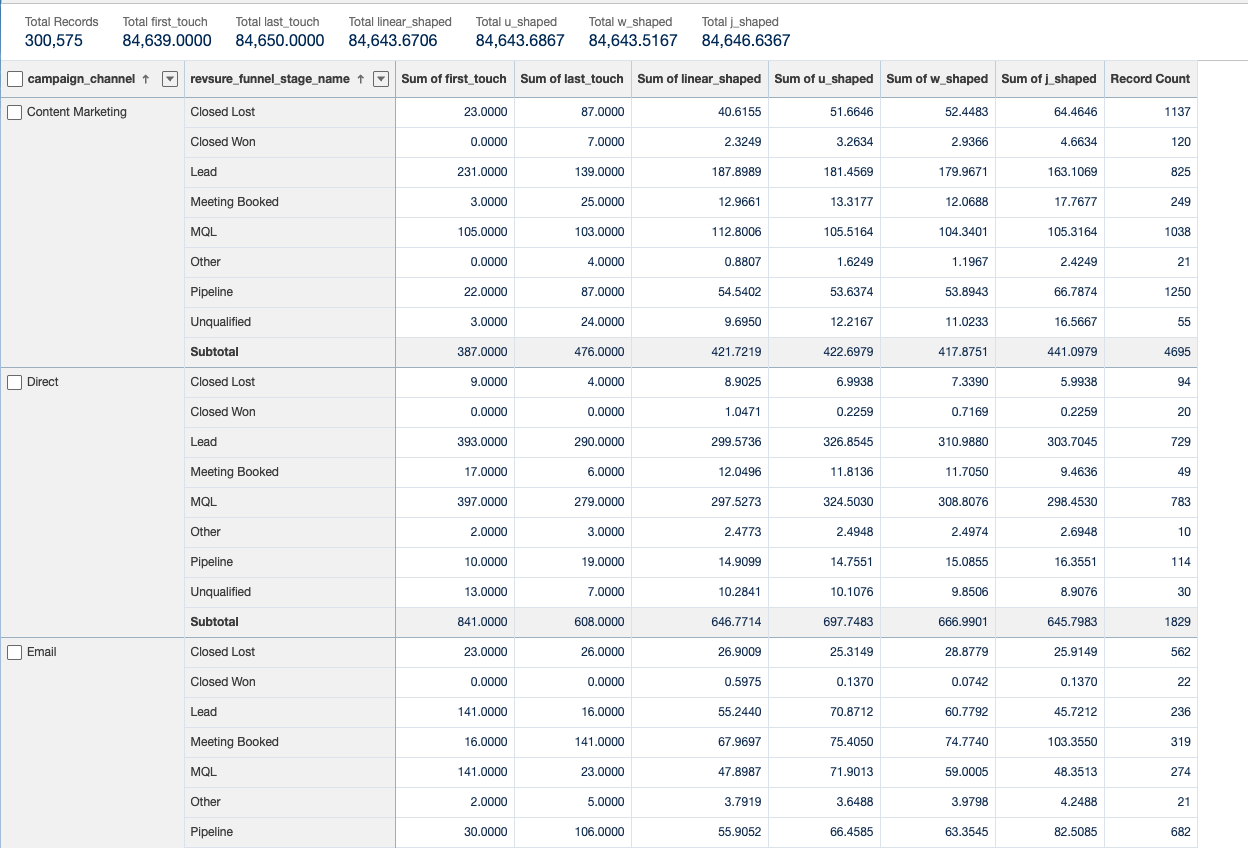
Creating an Attribution Report
Select “Attribution Reporting” type of report
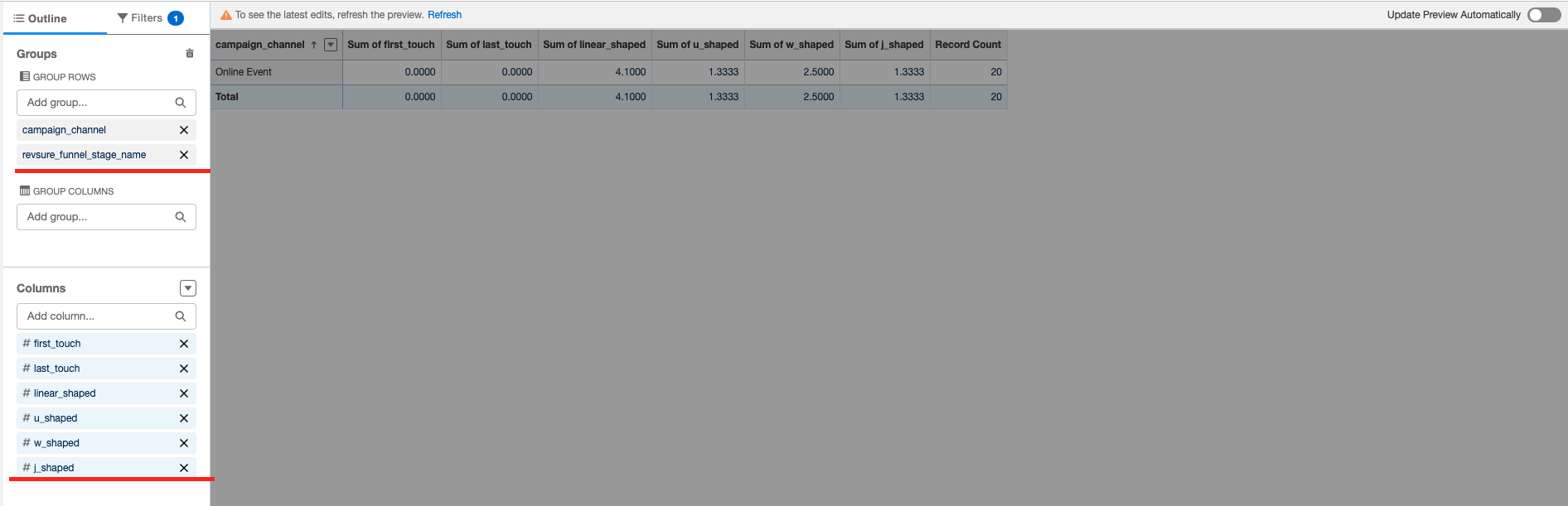
Select grouping column and summary column
Save and Run the report
Adding Engagements to Standard Object Layout
The following example is for adding “Engagements” in the Account object Layout. The same process can be followed for Lead, Contact and Opportunity objects.
In Setup → Object Manager → Account → Page Layouts
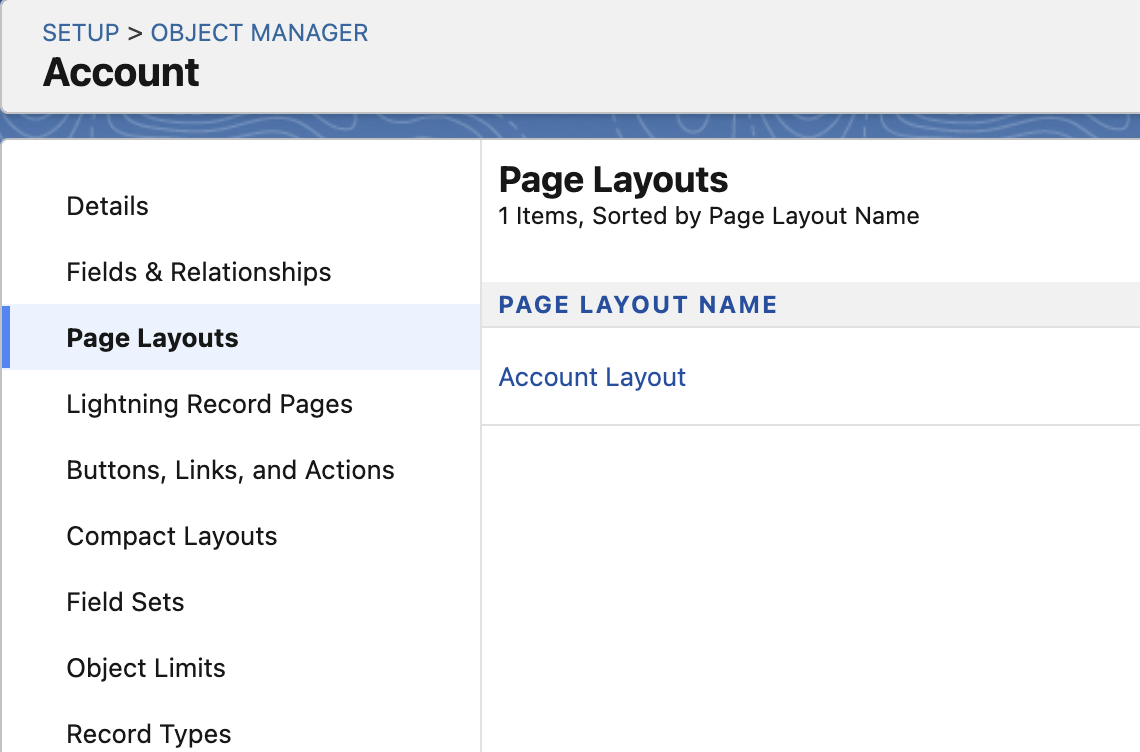
In the Related Lists section, the Engagements object will show up automatically.

Scroll down and click on the tool icon of Engagements section to add/remove relevant fields, select relevant fields and save it.

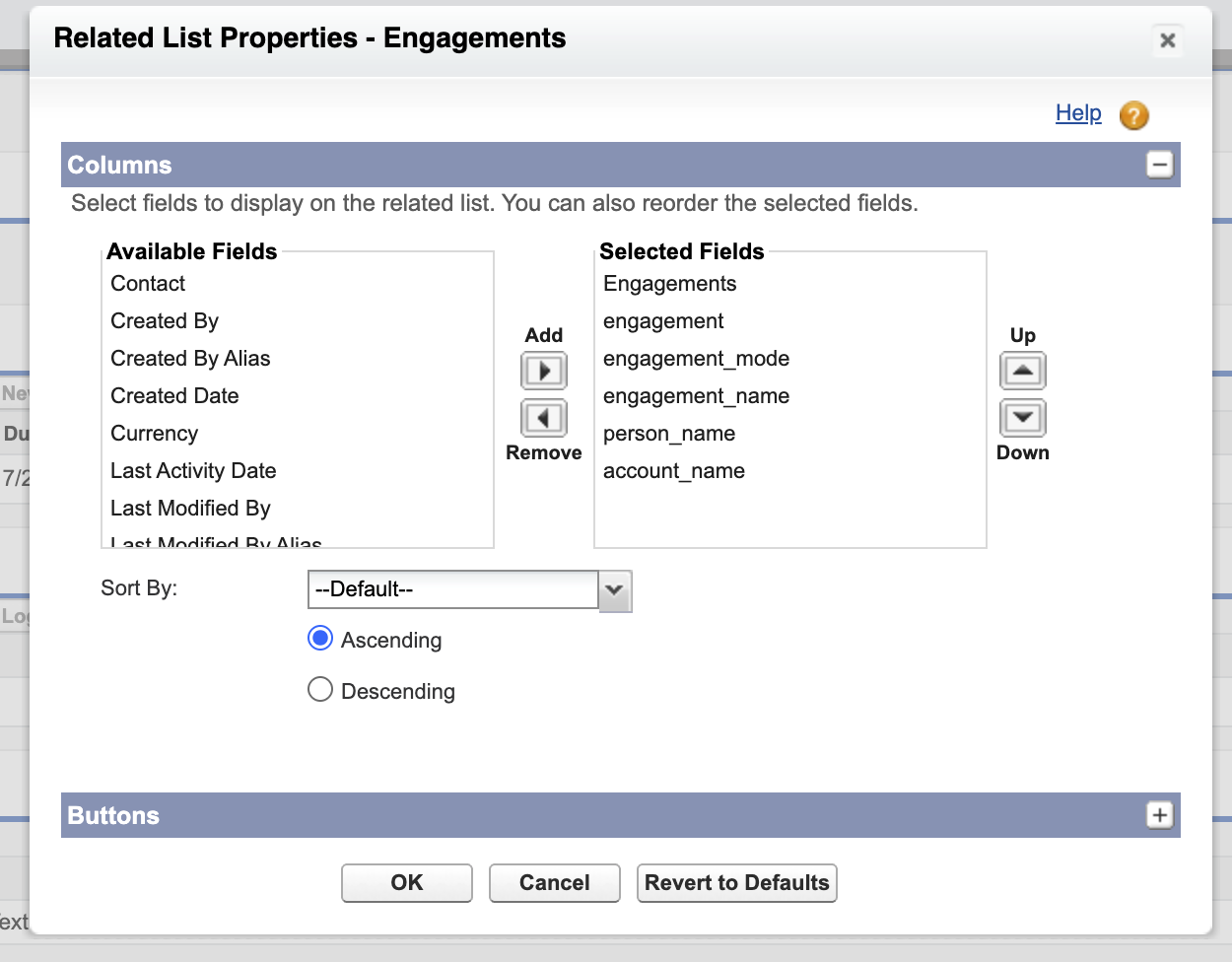
4. Now, you can open any Account record and you would be able to see the linked engagement details.
